Release Notes 2026
Frequently Asked Questions!
How do I see descriptions of codes in enquiry screens?
How do I access field level help?
How can I delete a payment run
How do I stop over receipting of orders
Why has my transaction not appeared on the payment run?
How do I stop a user posting to a prior and future period
How to copy and delete lines during data entry?
Prevent user posting to specific balance classes
Download Templates
User setup requires multiple screens and is complicated!
Changing security access to a user
Out of office
How do I give a user read only access?
De-allocate and an AP Payment
Can I run a report to view security groups against my users?
Hints and Tips!
Useful information to include when raising Financials cases
Navigation Hints and Tips
Browse Timeouts
Accounts Payable Quick Cards
Accounts Payable Supplier File
Accounts Payable Data Entry
Log Invoice/Credit Note
Enter a logged Invoice
Non Purchase Order Related Invoice Entry
Order Related Invoice
Order Related Invoice with Mismatches
Order Related Invoices - mismatch scenarios
Mismatch Types
Invoice and Credit Note Matching
Accounts Payable Enquiries
Accounts Payable Payments
Payment Processing
AP Payment Cancellation
Create a manual payment
Re-run Bacs Remittance
Cancel a full BACS payment.
Payment Processing Audits
Single Supplier Payment Processing
Transaction Maintenance
CIS Processing
Accounts Payable Code Tables
Accounts Receivable Quick Cards
Customer Maintenance
Data Entry and DDI Mandates
Enquiries
Cash Allocation
Credit Control
Student Sponsor
General Ledger Quick Cards
Chart of Accounts Setup
Create a new nominal code
Create management and analysis codes
Creating and Amending Nominal and Management code relationships
Create a new GL Structure Element
General Ledger Data Entry
Journal Entry
Journal Upload
General Ledger Journal Multi Level Authorisation
Modernisation Budget Upload
General Ledger Enquiries
Account Details
Trial Balance
GL Enquiries - Balance Sheet & Profit and Loss
Enquire across multiple years
Transactions Enquiries
Period and Year End Close
General Ledger Security
General Ledger Tax Journals
Fixed Assets Quick Cards
Prompt File - Asset Creation Updated
Fixed Assets Period End & Depreciation Updated
Revaluation
Disposals
Relife
Purchasing Management Quick Cards
Inventory Management Quick Cards
Return to Store
Stock Taking
Create Demand on Store (Financials)
Bin Transfers
Stock Disposal
Stock Adjustments
Import Tool Kit
Reconciliation Processes - Helpful how-to guides
Daily Checks
General Ledger Reconciliation Reporting
Accounts Payable Reconciliation Reporting
Accounts Receivable Reconciliation Reporting
Fixed Assets Reconciliation Reporting
Purchasing Management Reconciliation Reporting
Procurement Portal
Procurement Portal Overview
Navigation
Requisitions
Orders
Authorisation
Receiver
Invoice Clearance
Portal Administration
Procurement Portal – Teams Setup
Invoice Manager
Bank Reconciliation
Bank Reconciliation Overview
Bank Reconciliation Menus Explained
Bank Reconciliation Company Controls
Bank Reconciliation Code Tables
Transaction Types and Sub Types
Bank Reconciliation Enquiries
Bank Reconciliation Reports
Manual Bank Reconciliation
Bank Reconciliation Take-on
Unmatching Transactions
Reporting
General Ledger Reports
Account Payable Reports
Fixed Assets Reports
Sales Invoicing Reports
Accounts Receivable Reports
Bank Reconciliation Reports
Purchase Invoice Automation (PIA)
February Release
March Release
January 2026
Deleting Supplier training data
Resetting password - Smart Workflow
Purchase Invoice Automation (PIA)
Adding a New User - Smart Workflow
Password Reset in Smart-Capture
How to Create a New User in Smart-Capture
Reprocessing Failed OCR Supplier Invoices
Smart Capture Email Configuration Overview
Configuring Smart Capture to use Gmail in the Web UI
MAP Configuration Non-Microsoft and Non-Google Accounts
Configuring Smart Capture to use Microsoft 365 (Graph API) in the Web UI
Suggested Testing Areas
Release Notes - New UI Improvements
June Release 2024 - New UI Improvements
May Release 2024 - New UI Improvements
April Release 2024 - New UI Improvements
Release Notes 2025
December 2025
November 2025
October 2025
September 2025
August 2025
July Release
June Release
May 2025
April 2025
March 2025
February 2025
January 2025
Release Notes 2024
December 2024
November 2024
October 2024
September 2024
August 2024
July 2024
June 2024 Release
May 2024 Functional Changes
Financials Design Improvements
User Interface Overview
Chart Functionality
User Preference Improvements
Alerts & Field Error Focus
The all new Data Grid!
Input Fields & Dynamic Validation
Screen Structure
Miscellaneous New Features
Generic Actions
Bring Your Own BI (BYOBI)
Collaborative Planning
Financial Reporting Consolidation
Flow Headstart Forms
Request a Customer
Request a Supplier
Request a Sales Invoice
Request a Management Code
Request a nominal code
Create a Pay Request
API
Air Approvals
Contents
- All categories
- Purchase Invoice Automation (PIA)
- Reprocessing Failed OCR Supplier Invoices
Reprocessing Failed OCR Supplier Invoices
 Updated
by Caroline Buckland
Updated
by Caroline Buckland
Reprocessing Failed OCR Supplier Invoices
This Article aims to explain how to reprocess documents that have been recognised as Failed OCR Supplier Invoice, covering scenarios where the document is held in Smart Capture or Smart Workflow.
Scenario 1: Document Stuck in Smart Capture
When this applies
- The document is visible in Smart Capture (Data Verification or Reports > Batches).
- OCR has failed or captured incorrect/missing data.
Steps
- Open the relevant Batch
- Go to Smart Capture > Data Verification.
- Load the relevant batch containing the failed document.
- Correct or Reset Data
- Manually correct any incorrectly captured fields.
- If capture is unusable, clear the captured data.
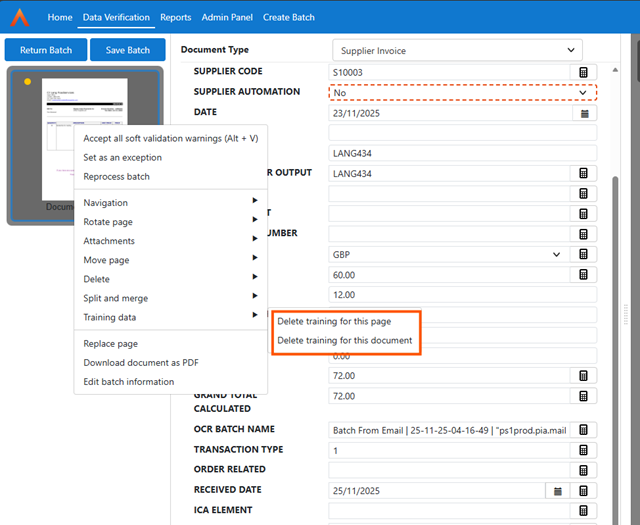
- (Optional) Delete Training Data
- Right‑click the document on the left side.
- Select Training Data -> Delete training for this page or Delete training for this document if incorrect training is being applied.
- Submit the Batch
- Once data is correct, select Submit to send the document to Smart Workflow.
- Reprocess the Batch
- Right‑click the document overview (on the left).
- Select Reprocess batch.
- The document will be sent back through OCR and capture.
Scenario 2: Document Stuck in Smart Workflow (Failed OCR Supplier Invoice)
When this applies
- The document has moved into Smart Workflow.
- Document type is set to Failed OCR Supplier Invoice.
Steps
- Locate the Document
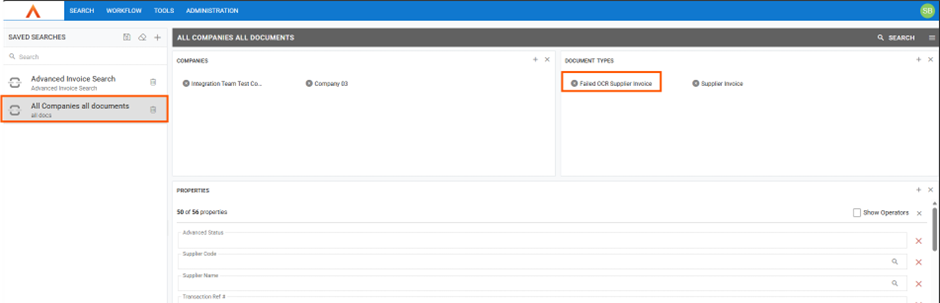
- Navigate to Search > Advanced Search
- Select the saved search filter All Companies all documents, then click search on the top right corner
- On the page with the returned results you can sort the Document Type Collum, this way you will have an organised list of documents based on their document type
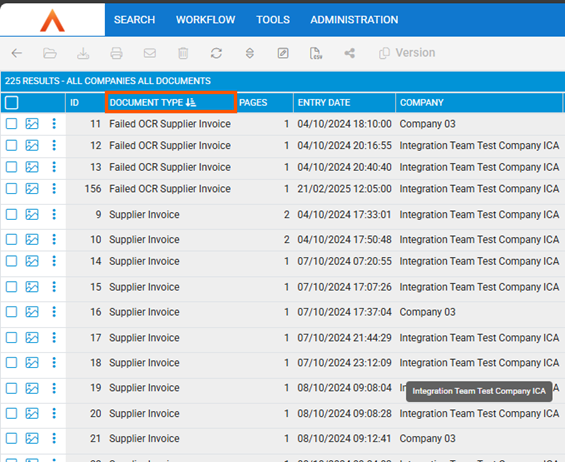
- Open the document by double clicking on the transaction line or selecting Open from the menu displayed by clicking the 3 dots next to the picture icon on the left of the transaction line
- Update Document Type
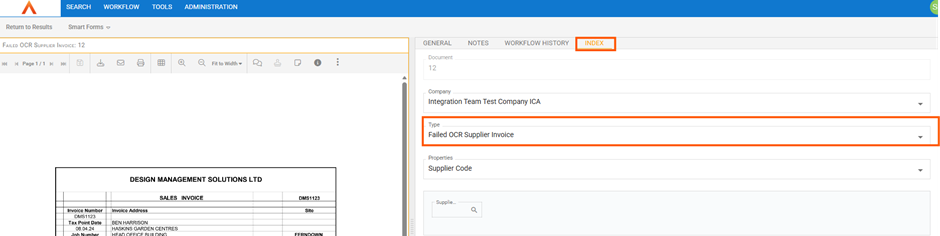
- Open the Index tab.
- Change the document type from Failed OCR Supplier Invoice to Supplier Invoice.
- Correct Index Data
- Remove incorrect values using the delete (X) icon.
- Re‑enter missing or incorrect information (supplier, invoice number, date, totals, etc.).
- Save changes.
- Progress the Document
- Once corrected, set the status to Ready for Export.
- The document will proceed to export on the next scheduled run.
Key Notes
- Reprocessing resends the document through OCR and capture logic.
- Deleting training data should be used when the system consistently applies incorrect learning.
- User permissions may restrict some actions.
