Release Notes 2026
October 2026
September 2026
August 2026
July 2026 Release
June 2026
May 2026
April 2026
March 2026
February 2026
Frequently Asked Questions!
How do I see descriptions of codes in enquiry screens?
How do I access field level help?
How can I delete a payment run
How do I stop over receipting of orders
Why has my transaction not appeared on the payment run?
How do I stop a user posting to a prior and future period
How to copy and delete lines during data entry?
Prevent user posting to specific balance classes
Download Templates
User setup requires multiple screens and is complicated!
Changing security access to a user
Out of office
How do I give a user read only access?
De-allocate and an AP Payment
Can I run a report to view security groups against my users?
Hints and Tips!
Useful information to include when raising Financials cases
Navigation Hints and Tips
Browse Timeouts
Accounts Payable Quick Cards
Accounts Payable Supplier File
Accounts Payable Data Entry
Log Invoice/Credit Note
Enter a logged Invoice
Non Purchase Order Related Invoice Entry
Order Related Invoice
Order Related Invoice with Mismatches
Order Related Invoices - mismatch scenarios
Mismatch Types
Invoice and Credit Note Matching
Accounts Payable Enquiries
Accounts Payable Payments
Payment Processing
AP Payment Cancellation
Create a manual payment
Re-run Bacs Remittance
Cancel a full BACS payment.
Payment Processing Audits
Single Supplier Payment Processing
Transaction Maintenance
CIS Processing
Accounts Payable Code Tables
Accounts Receivable Quick Cards
Customer Maintenance
Data Entry and DDI Mandates
Enquiries
Cash Allocation
Credit Control
Student Sponsor
General Ledger Quick Cards
Chart of Accounts Setup
Create a new nominal code
Create management and analysis codes
Creating and Amending Nominal and Management code relationships
Create a new GL Structure Element
General Ledger Data Entry
Journal Entry
Journal Upload
General Ledger Journal Multi Level Authorisation
Modernisation Budget Upload
General Ledger Enquiries
Account Details
Trial Balance
GL Enquiries - Balance Sheet & Profit and Loss
Enquire across multiple years
Transactions Enquiries
Period and Year End Close
General Ledger Security
General Ledger Tax Journals
Fixed Assets Quick Cards
Prompt File - Asset Creation Updated
Fixed Assets Period End & Depreciation Updated
Revaluation
Disposals
Relife
Purchasing Management Quick Cards
Inventory Management Quick Cards
Return to Store
Stock Taking
Create Demand on Store (Financials)
Bin Transfers
Stock Disposal
Stock Adjustments
Import Tool Kit
Reconciliation Processes - Helpful how-to guides
Daily Checks
General Ledger Reconciliation Reporting
Accounts Payable Reconciliation Reporting
Accounts Receivable Reconciliation Reporting
Fixed Assets Reconciliation Reporting
Purchasing Management Reconciliation Reporting
Procurement Portal
Procurement Portal Overview
Navigation
Requisitions
Orders
Authorisation
Receiver
Invoice Clearance
Portal Administration
Procurement Portal – Teams Setup
Invoice Manager
Bank Reconciliation
Bank Reconciliation Overview
Bank Reconciliation Menus Explained
Bank Reconciliation Company Controls
Bank Reconciliation Code Tables
Transaction Types and Sub Types
Bank Reconciliation Enquiries
Bank Reconciliation Reports
Manual Bank Reconciliation
Bank Reconciliation Take-on
Unmatching Transactions
Reporting
General Ledger Reports
Account Payable Reports
Fixed Assets Reports
Sales Invoicing Reports
Accounts Receivable Reports
Bank Reconciliation Reports
Purchase Invoice Automation (PIA)
February Release
March Release
January 2026
Deleting Supplier training data
Resetting password - Smart Workflow
Purchase Invoice Automation (PIA)
Adding a New User - Smart Workflow
Password Reset in Smart-Capture
How to Create a New User in Smart-Capture
Reprocessing Failed OCR Supplier Invoices
Smart Capture Email Configuration Overview
Configuring Smart Capture to use Gmail in the Web UI
MAP Configuration Non-Microsoft and Non-Google Accounts
Configuring Smart Capture to use Microsoft 365 (Graph API) in the Web UI
Suggested Testing Areas
Release Notes - New UI Improvements
June Release 2024 - New UI Improvements
May Release 2024 - New UI Improvements
April Release 2024 - New UI Improvements
Release Notes 2025
December 2025
November 2025
October 2025
September 2025
August 2025
July Release
June Release
May 2025
April 2025
March 2025
February 2025
January 2025
Release Notes 2024
December 2024
November 2024
October 2024
September 2024
August 2024
July 2024
June 2024 Release
May 2024 Functional Changes
Financials Design Improvements
User Interface Overview
Chart Functionality
User Preference Improvements
Alerts & Field Error Focus
The all new Data Grid!
Input Fields & Dynamic Validation
Screen Structure
Miscellaneous New Features
Generic Actions
Bring Your Own BI (BYOBI)
Collaborative Planning
Financial Reporting Consolidation
Flow Headstart Forms
Request a Customer
Request a Supplier
Request a Sales Invoice
Request a Management Code
Request a nominal code
Create a Pay Request
API
Air Approvals
- All categories
- Accounts Payable Quick Cards
- Accounts Payable Payments
- Cancel a full BACS payment.
Cancel a full BACS payment.
 Updated
by Caroline Buckland
Updated
by Caroline Buckland
Cancel a full BACS payment
If the whole of the BACS run needs to be cancelled, rather than cancelling the payment on each supplier account you can cancel the BACS payment. The BACS payment and allocation is setup on a specific supplier account. This will have been setup by your consultant.
If you don't know the BACS supplier, follow the steps below:
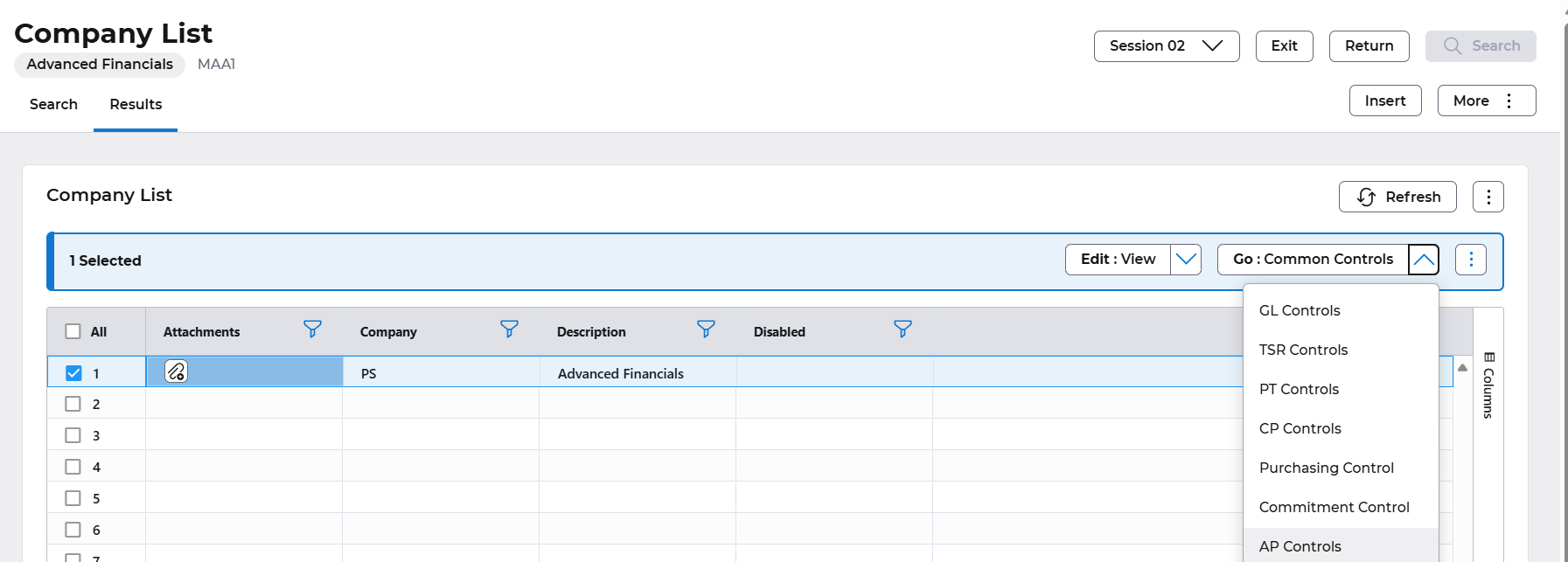
Access the following menus: System Admin>Combined Company Controls
Locate you Company and use the Go>AP Controls action.
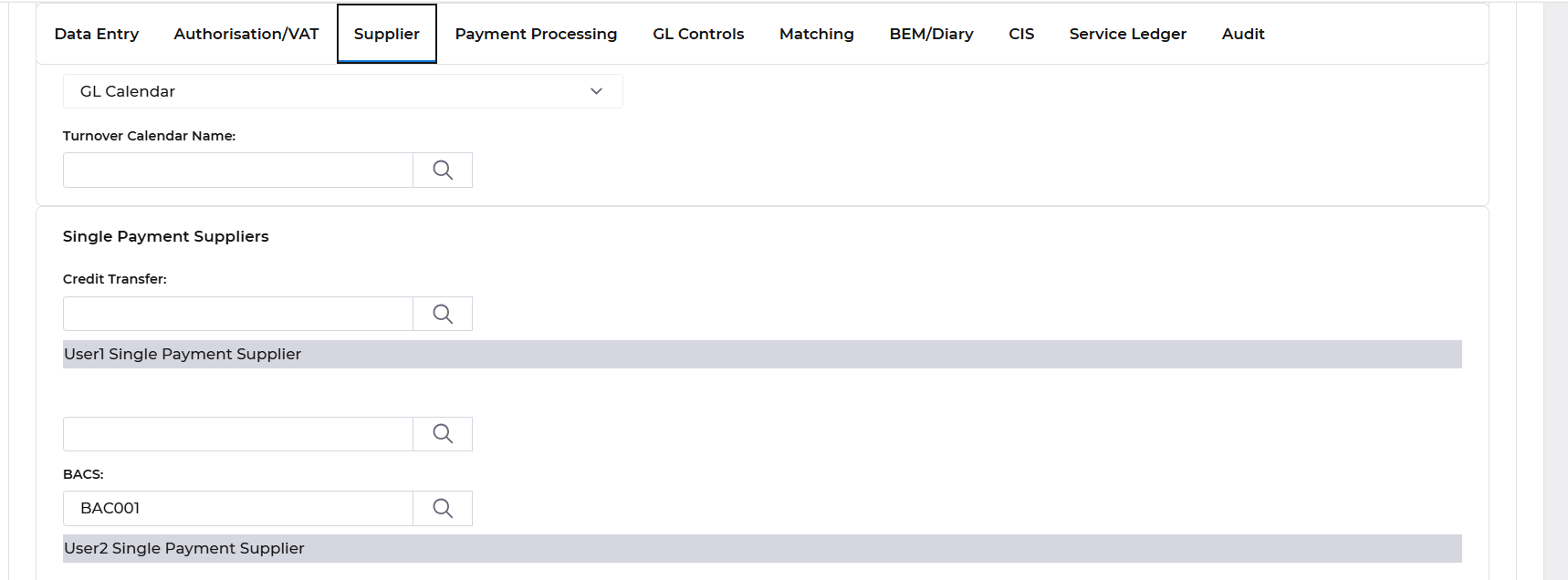
Select the Edit>View option and locate the Suppliers tab. The BACS supplier will be listed under the BACS heading.
Locate the Payment number to cancel.
Locate the BACS Supplier, access the following menu options: Accounts Payable-AP Enquiries-Transactions by Supplier
Search for the BACS supplier and click on Search.
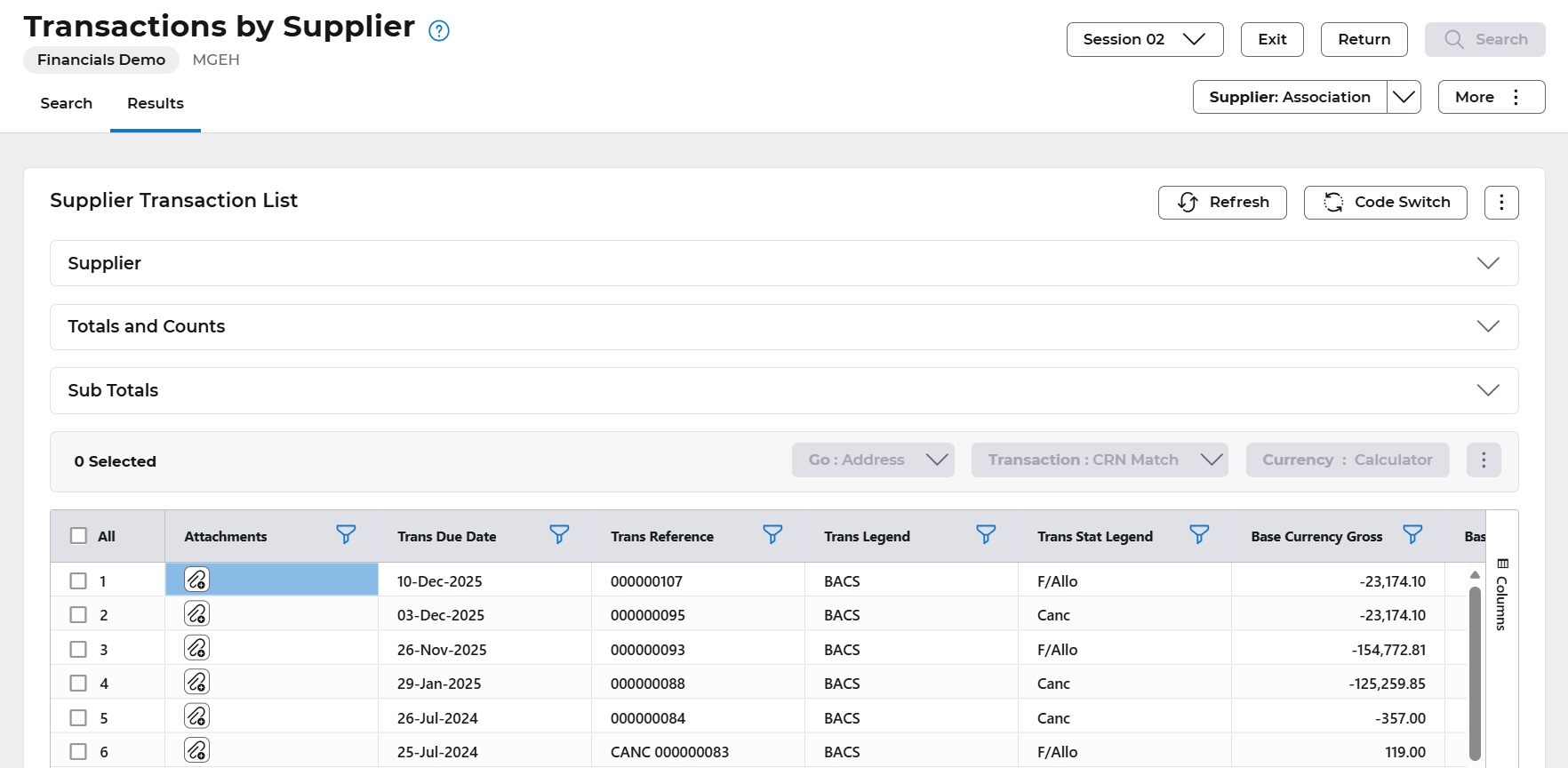
A list of all BACS payments are shown. To cancel the payment access the following menus.
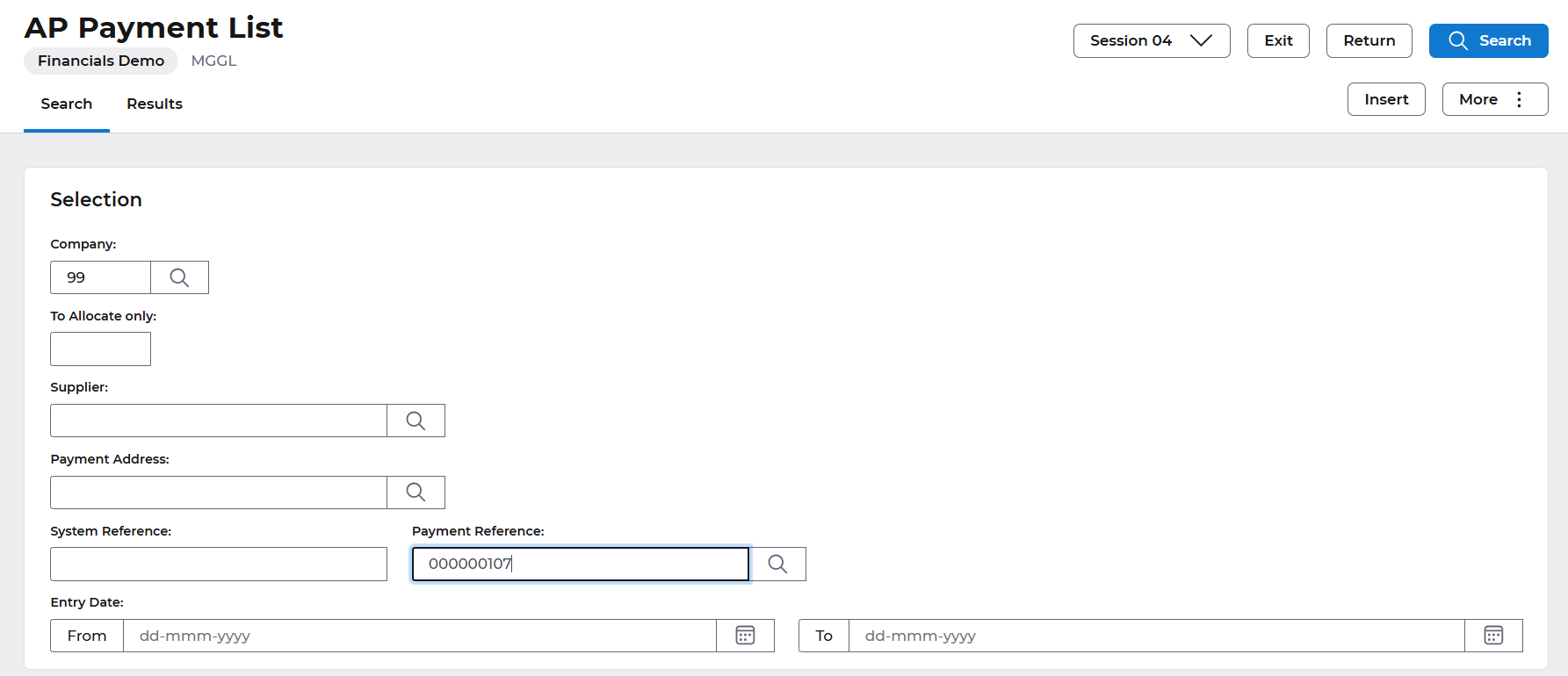
Accounts Payable-AP Processes-Payment Processing-Manual Payments
Locating the Payment
You can enter either the Supplier number/Payment Reference, and optionally with an Entry Date From and To, to locate the payment. Then click on Search.
Cancel the Payment
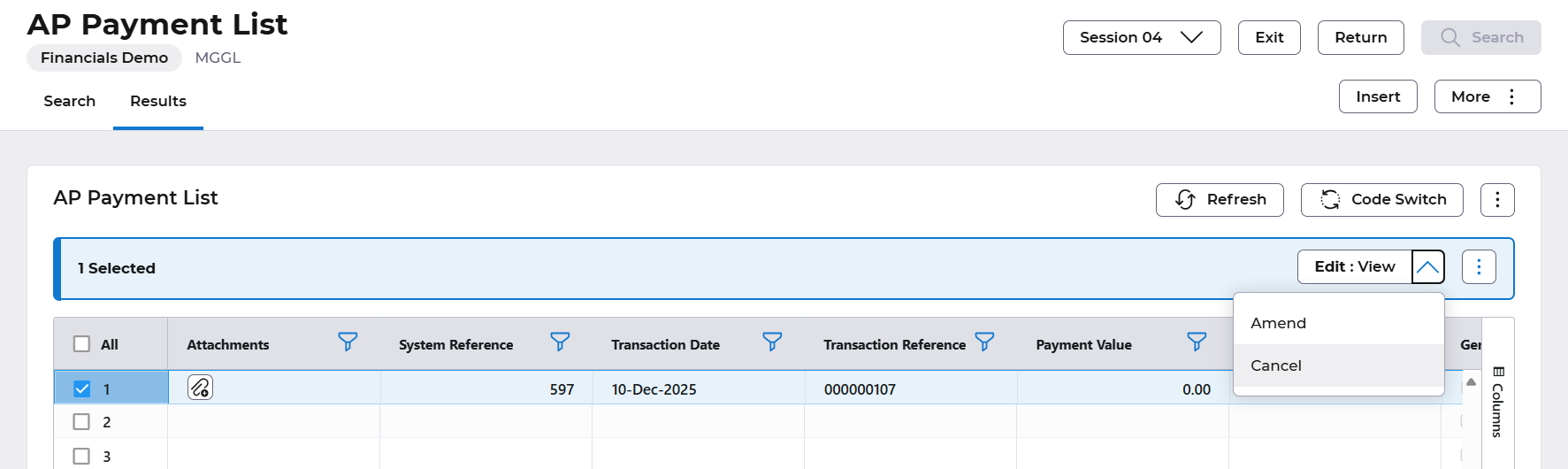
A list of payments that meet your search criteria will be displayed, highlight the payment you want to cancel and select Edit followed by Cancel.
You will be taken to a summary screen. Click on Save to cancel the Payment.
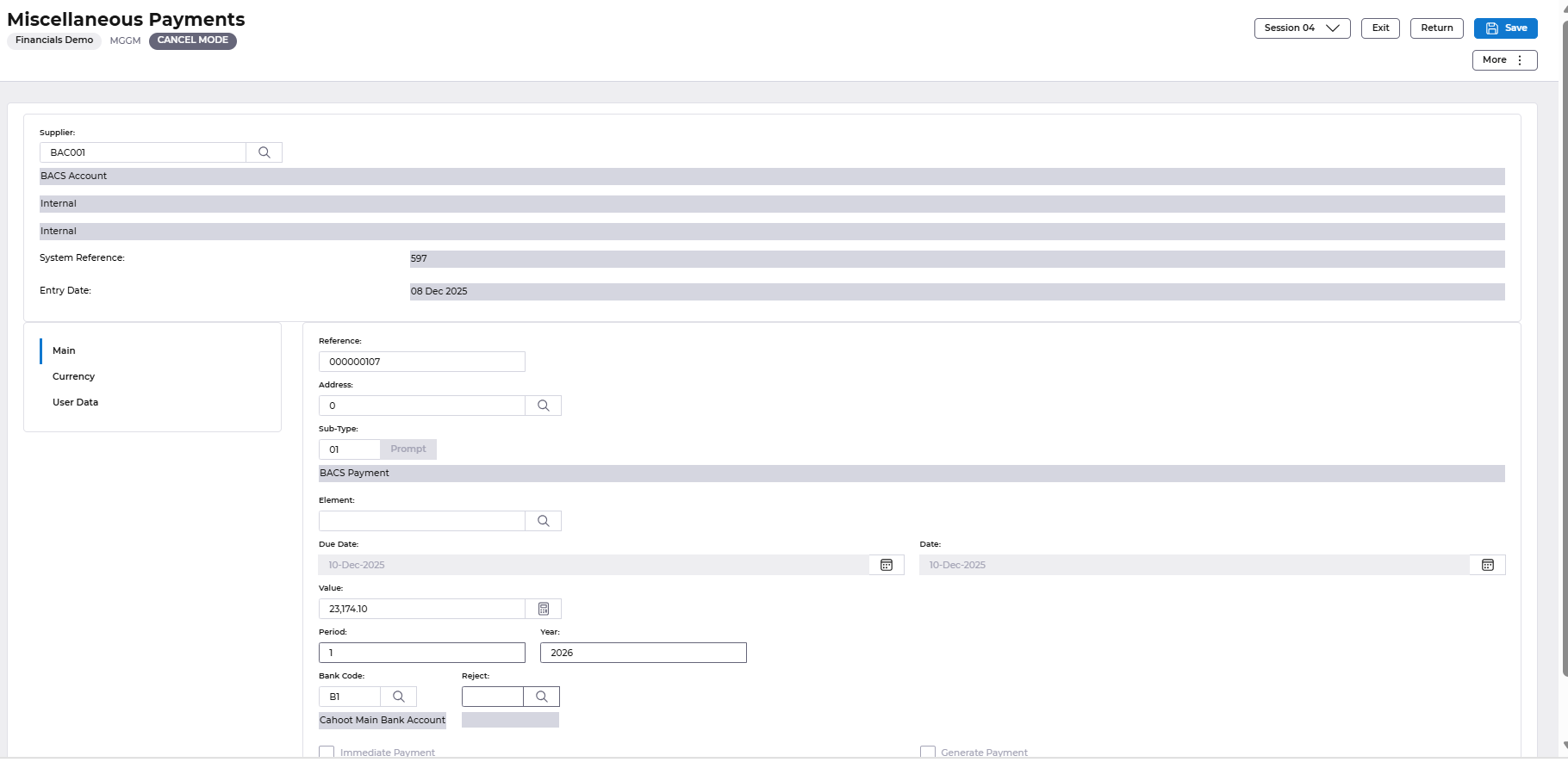
This will cancel the payment on all of the supplier accounts for that schedule and return the transactions statuses to DUE/OVER DUE. It will also reverse any general ledger postings.
