Release Notes 2026
Frequently Asked Questions!
How do I see descriptions of codes in enquiry screens?
How do I access field level help?
How can I delete a payment run
How do I stop over receipting of orders
Why has my transaction not appeared on the payment run?
How do I stop a user posting to a prior and future period
How to copy and delete lines during data entry?
Prevent user posting to specific balance classes
Download Templates
User setup requires multiple screens and is complicated!
Changing security access to a user
Out of office
How do I give a user read only access?
De-allocate and an AP Payment
Can I run a report to view security groups against my users?
Hints and Tips!
Useful information to include when raising Financials cases
Navigation Hints and Tips
Browse Timeouts
Accounts Payable Quick Cards
Accounts Payable Supplier File
Accounts Payable Data Entry
Log Invoice/Credit Note
Enter a logged Invoice
Non Purchase Order Related Invoice Entry
Order Related Invoice
Order Related Invoice with Mismatches
Order Related Invoices - mismatch scenarios
Mismatch Types
Invoice and Credit Note Matching
Accounts Payable Enquiries
Accounts Payable Payments
Payment Processing
AP Payment Cancellation
Create a manual payment
Re-run Bacs Remittance
Cancel a full BACS payment.
Payment Processing Audits
Single Supplier Payment Processing
Transaction Maintenance
CIS Processing
Accounts Payable Code Tables
Accounts Receivable Quick Cards
Customer Maintenance
Data Entry and DDI Mandates
Enquiries
Cash Allocation
Credit Control
Student Sponsor
General Ledger Quick Cards
Chart of Accounts Setup
Create a new nominal code
Create management and analysis codes
Creating and Amending Nominal and Management code relationships
Create a new GL Structure Element
General Ledger Data Entry
Journal Entry
Journal Upload
General Ledger Journal Multi Level Authorisation
Modernisation Budget Upload
General Ledger Enquiries
Account Details
Trial Balance
GL Enquiries - Balance Sheet & Profit and Loss
Enquire across multiple years
Transactions Enquiries
Period and Year End Close
General Ledger Security
General Ledger Tax Journals
Fixed Assets Quick Cards
Prompt File - Asset Creation Updated
Fixed Assets Period End & Depreciation Updated
Revaluation
Disposals
Relife
Purchasing Management Quick Cards
Inventory Management Quick Cards
Return to Store
Stock Taking
Create Demand on Store (Financials)
Bin Transfers
Stock Disposal
Stock Adjustments
Import Tool Kit
Reconciliation Processes - Helpful how-to guides
Daily Checks
General Ledger Reconciliation Reporting
Accounts Payable Reconciliation Reporting
Accounts Receivable Reconciliation Reporting
Fixed Assets Reconciliation Reporting
Purchasing Management Reconciliation Reporting
Procurement Portal
Procurement Portal Overview
Navigation
Requisitions
Orders
Authorisation
Receiver
Invoice Clearance
Portal Administration
Procurement Portal – Teams Setup
Invoice Manager
Bank Reconciliation
Bank Reconciliation Overview
Bank Reconciliation Menus Explained
Bank Reconciliation Company Controls
Bank Reconciliation Code Tables
Transaction Types and Sub Types
Bank Reconciliation Enquiries
Bank Reconciliation Reports
Manual Bank Reconciliation
Bank Reconciliation Take-on
Unmatching Transactions
Reporting
General Ledger Reports
Account Payable Reports
Fixed Assets Reports
Sales Invoicing Reports
Accounts Receivable Reports
Bank Reconciliation Reports
Purchase Invoice Automation (PIA)
February Release
March Release
January 2026
Deleting Supplier training data
Resetting password - Smart Workflow
Purchase Invoice Automation (PIA)
Adding a New User - Smart Workflow
Password Reset in Smart-Capture
How to Create a New User in Smart-Capture
Reprocessing Failed OCR Supplier Invoices
Smart Capture Email Configuration Overview
Configuring Smart Capture to use Gmail in the Web UI
MAP Configuration Non-Microsoft and Non-Google Accounts
Configuring Smart Capture to use Microsoft 365 (Graph API) in the Web UI
Suggested Testing Areas
Release Notes - New UI Improvements
June Release 2024 - New UI Improvements
May Release 2024 - New UI Improvements
April Release 2024 - New UI Improvements
Release Notes 2025
December 2025
November 2025
October 2025
September 2025
August 2025
July Release
June Release
May 2025
April 2025
March 2025
February 2025
January 2025
Release Notes 2024
December 2024
November 2024
October 2024
September 2024
August 2024
July 2024
June 2024 Release
May 2024 Functional Changes
Financials Design Improvements
User Interface Overview
Chart Functionality
User Preference Improvements
Alerts & Field Error Focus
The all new Data Grid!
Input Fields & Dynamic Validation
Screen Structure
Miscellaneous New Features
Generic Actions
Bring Your Own BI (BYOBI)
Collaborative Planning
Financial Reporting Consolidation
Flow Headstart Forms
Request a Customer
Request a Supplier
Request a Sales Invoice
Request a Management Code
Request a nominal code
Create a Pay Request
API
Air Approvals
Contents
- All categories
- Release Notes 2025
- March 2025
March 2025
 Updated
by Caroline Buckland
Updated
by Caroline Buckland
New Company Controls screen
Details of the change
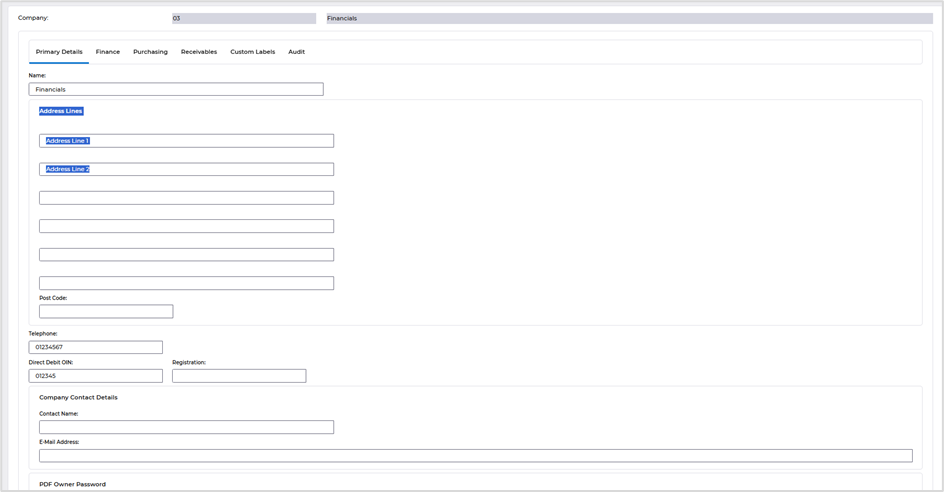
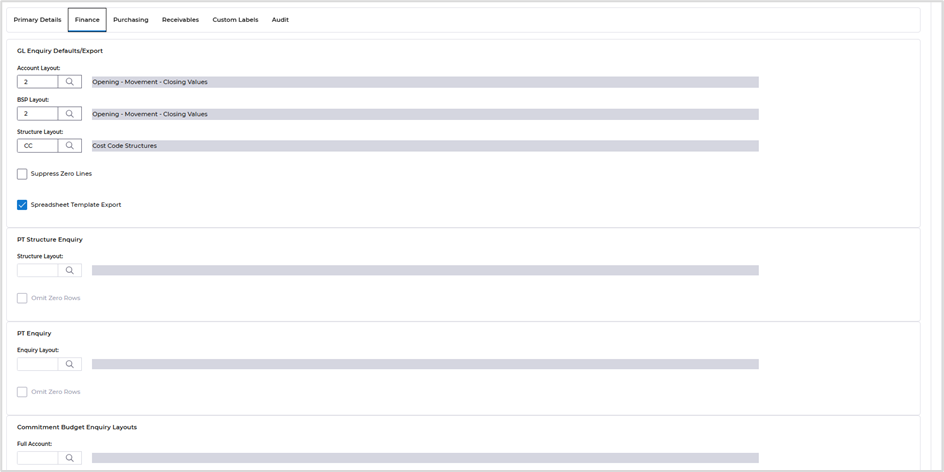
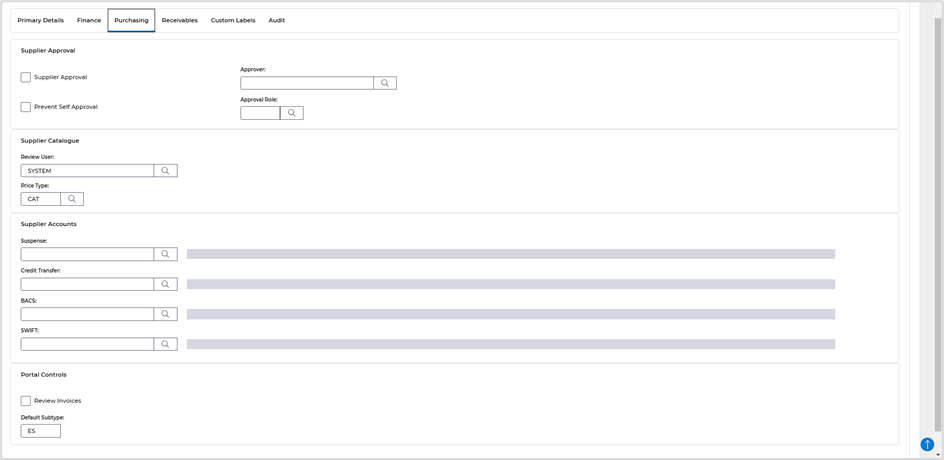
A new option has been added that will allows a user to amend fields relating to the Financials company controls. These new controls allow amendments to the following areas:
- Company name and address details
- General Ledger Enquiry default layout codes
- Supplier approval controls in Purchasing
- Supplier file custom fields
- Customer approval controls and ledger defaults
- Customer file custom fields
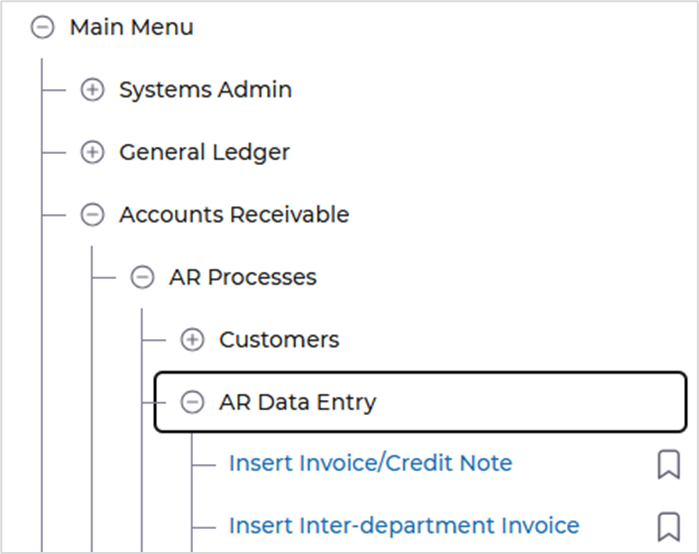
Access the following menus:
Main Menu>Systems Admin>Combined Company Controls
Locate you company and use the Amend action.
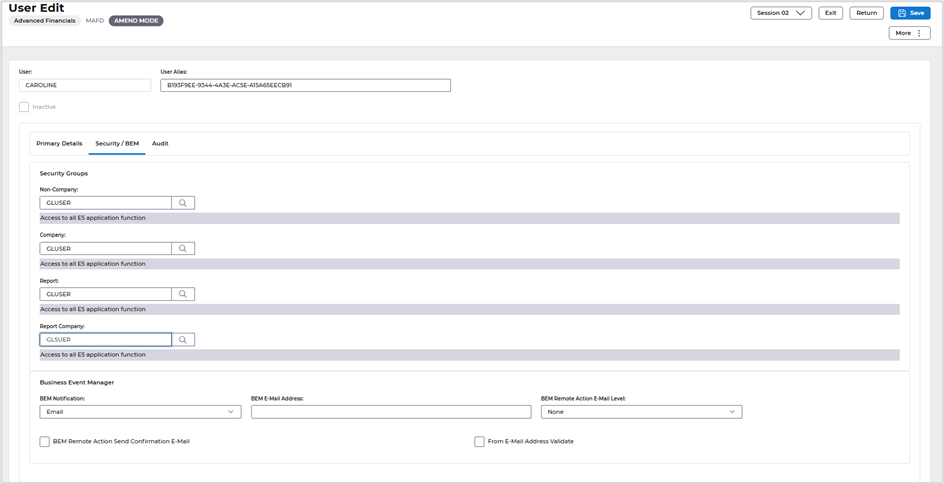
Firstly, Locate the security group of the user(s).
Anyone with this security group will have this change applied.
To locate the security group for the user(s) access the following menus.
Systems Admin/System Wide Controls/Users & Roles/Users
You can also select the combined user setup option.
Enter the User Id in the User field and select Search or just select Search to build a full list of users.
Use the View or Amend action against the user.
The security group is listed on the Security /BEM tab.
Setting the denials
Facility Denials – this is the amendment of the security group to revoke access to those secured balance classes.
Access the following menus.
Systems Admin/System Wide Controls/Security/Security Groups
In the selection window enter the Security Group of the User and then select Search.
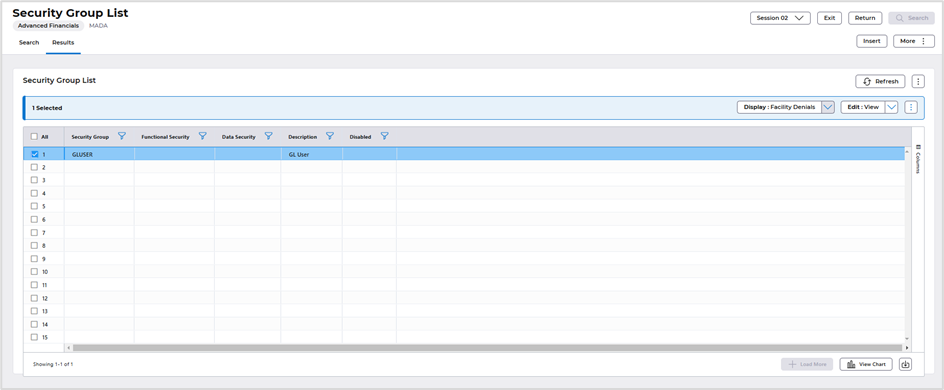
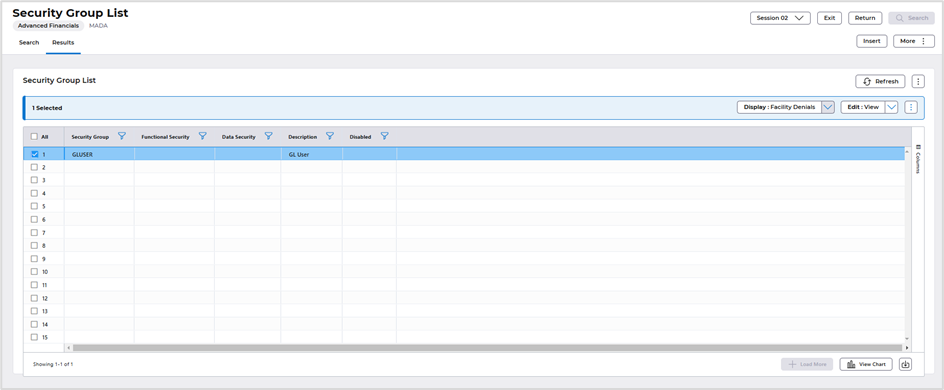
Select the Display: Facility DENIALS button.
Enter AA4 in the Program field, click on Search.

Double click on the Line to access the details screen for the program.
You can deny access to the full program or just allow view only access.
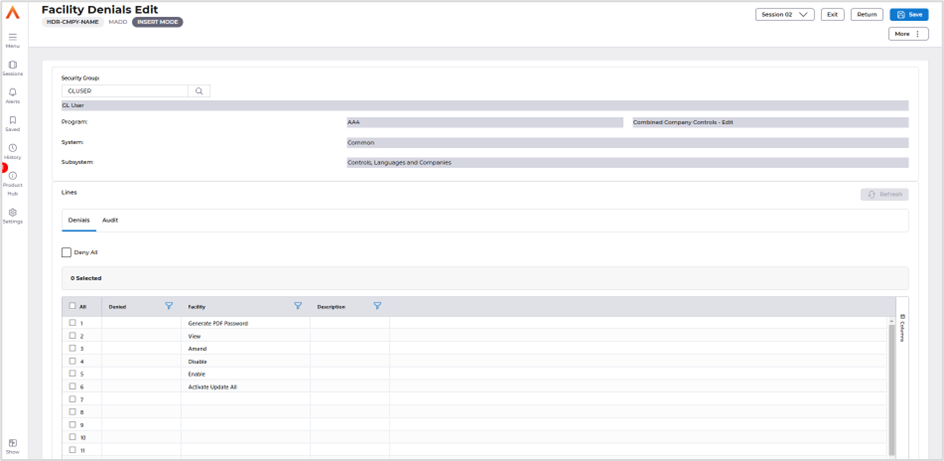
Once complete select Save.
Customer File Extended Fields
Details of the change
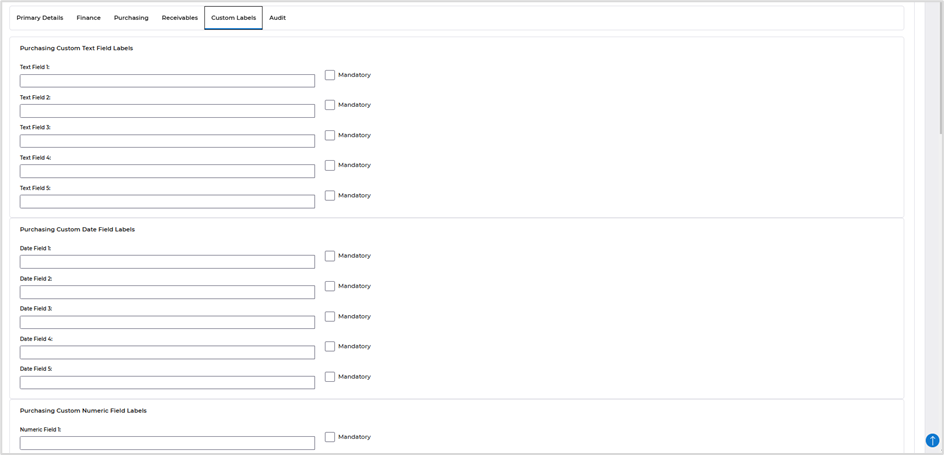
We have introduced new fields on the Customer file that will allow you to enter your own labels to hold custom defined information. There are five text fields, five date fields, five numeric fields and five fields that can have a flag set. Each field has an option to flag as mandatory.
Be aware that if the fields are marked as mandatory, existing customers will require an entry on those fields.
Each field name can be defined in the new Combined Company Controls screen. The new labels will be displayed in the Controls screen in the Customer file.
Combined Company Controls screen
Access the following menus:
Main Menu>Systems Admin>Combined Company Controls and locate your company, use the Amend action.
The fields are firstly defined in the Combined Company Controls screen.
Access the Custom Field Labels tab, scroll to find the Accounts Receivable fields and enter the required text for each label, each label has a maximum size of 40 characters. Flag any field that is required as mandatory.
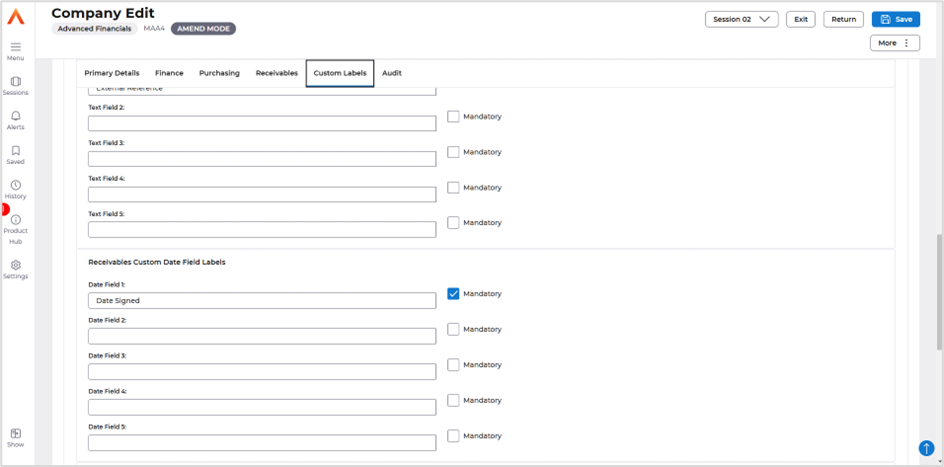
Once complete, select Save.
The fields will now be displayed in the customer file.
Access the following menus:
Main Menu>Accounts Receivable>AR Process>Maintain Customers
Locate a customer then use the amend action. Access the Controls tab. Select the Custom Fields 1 and 2 formats. The new fields will be displayed.
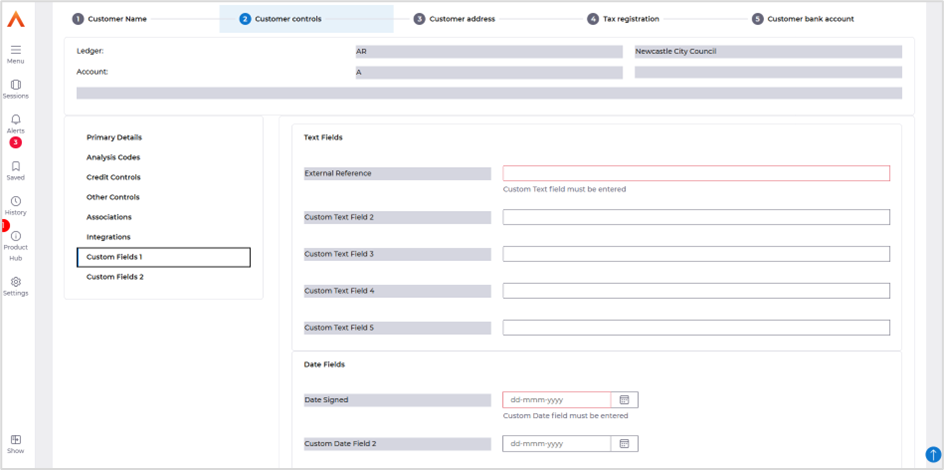
Bacs File to new folder
Details of the change
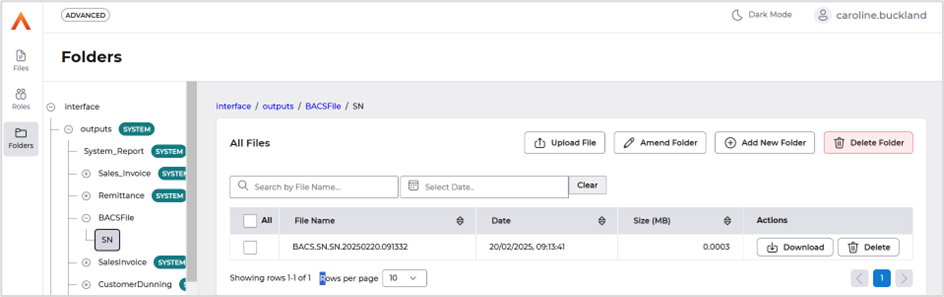
When performing payment processing in Accounts Payable a BACS file is produced. This file was automatically sent to Files Management. A change has been made so that the file can sent to a specific folder.
The below is an example of the new folder format.
Goods Received notes reminders
Details of the change
A process is now available that will send out email notifications to users who have purchase orders lines with an overdue delivery date and have not yet been receipted. The notification will be sent to the order owner.
This process can be run from an overnight schedule, or a menu option.
Access the following menu option.
Purchasing Management>PM Processes>Goods Receiving>Notify Order Requiring Receipt.
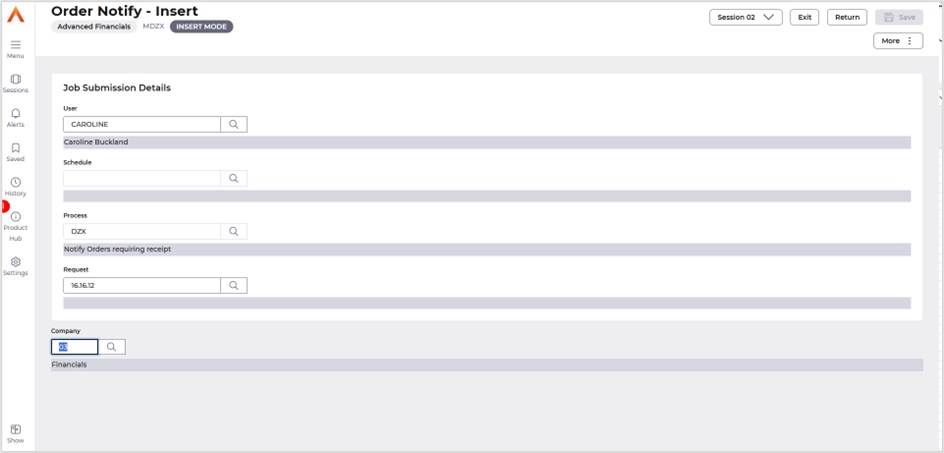
The following screen will be displayed.
Enter your company code and then Select Submit followed by Submit again.
The email will be like the one below.

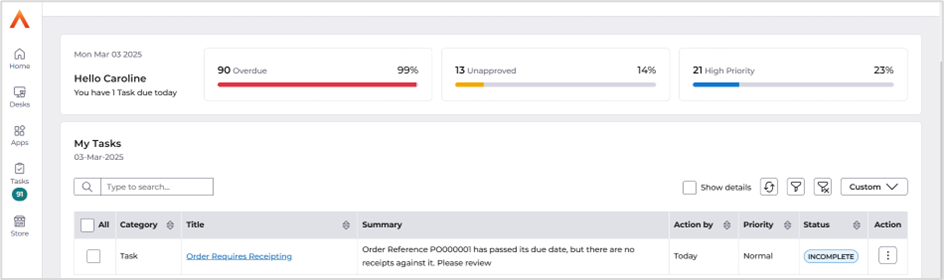
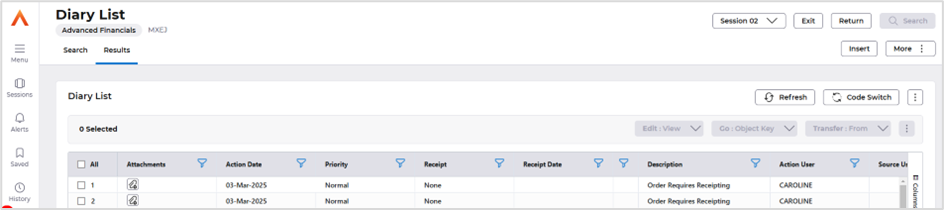
Raise a support case to activate this new feature.
Sales Invoice – Inter Departmental added to menu
Details of the change
Entering Inter-Departmental Documents
To track trading between different departments within your business you can use interdepartmental documents. For example, if your company sells office supplies, your administrative and clerical departments can purchase your company's office supplies in the same way that a customer purchases your supplies.
The inter-departmental invoice contains special fields to indicate the appropriate revenue and expense accounts so that when the document is updated, printed and posted, all appropriate General Ledger accounts are balanced. Revenue and expense accounts can be entered for each item on the inter-departmental document or entered on the header to represent all of the items in the document.
Before entering inter-departmental documents, inter-departmental document types are required so that they specify the General Ledger accounts of the purchasing department and selling department. An inter-departmental document type must be created for each possible trading pair in the company.
Because inter-departmental documents do not reflect the sale of goods to actual customers, they do not post into Accounts Receivable. Instead, they post directly to General Ledger.
Inter-departmental documents can also handle transactions between two different companies in the system.
Plan codes added to the menu
Details of the change
Plan code and Plan Interest Code options have been added to the Payment By Instalment menu.