Contents
- Release Notes - deferred to July
- Procurement Portal Changes
- Authorisation navigation improvements
- Improved Comments and Hold Features during approval
- Commitment balance popup shown to requestor
- Multi Line Return
- Pause quantity/value mismatch notification for a period of days
- Order Closure – NHS Supply Chain
- Internal Delivery Location
- AFX Changes
June 2026
 Updated
by Caroline Buckland
Updated
by Caroline Buckland
- Release Notes - deferred to July
- Procurement Portal Changes
- Authorisation navigation improvements
- Improved Comments and Hold Features during approval
- Commitment balance popup shown to requestor
- Multi Line Return
- Pause quantity/value mismatch notification for a period of days
- Order Closure – NHS Supply Chain
- Internal Delivery Location
- AFX Changes
Release Notes - deferred to July
This document contains details of new and amended functionality included in the software update deployed on 15th June 2026. We've rolled out several enhancements this month, including:
- Portal Changes
o Commitment Date & Expected Date added
o Authorisation navigation improvements
o Comments on orders via approval
o Commitment popup window for requestor
o Multi Line Return
o Pause BEM Mismatches
- Financials - Order Closure - NHS Supply Chain
- Internal Delivery Locations
- AFX Changes
Procurement Portal Changes
Commitment and Expected date added
Details of the change
When raising purchase orders in Financials Core, you're able to enter key dates such as commitment date, due date, and expected date. The commitment date is often used to indicate when goods are expected to be received, or a service is due to be completed.
This useful feature has now been extended to the Procurement Portals, providing a more consistent and streamlined experience across both products.
To use this functionality, access the Administration Menu followed by the Purchasing Tile.
The Expected date and Commitment date can be toggled on.
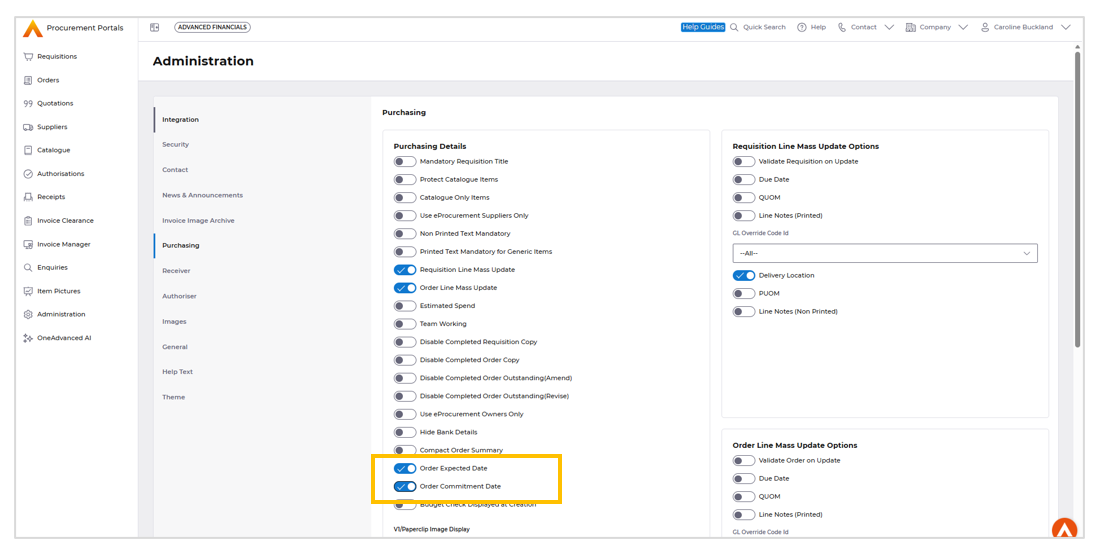
Save the change.
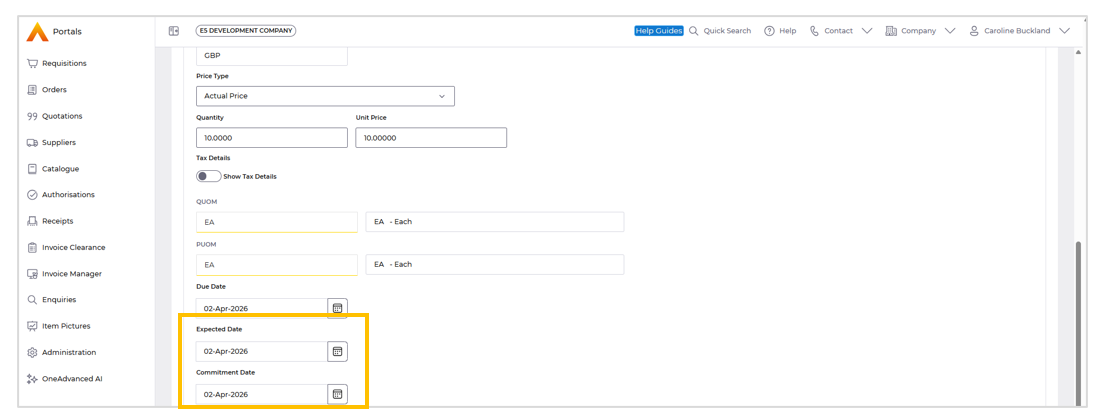
During Data entry the new fields are displayed at line level.
Authorisation navigation improvements
Details of the change
When authorising orders or invoices, you can now expect a more streamlined experience. Previously, selecting 'Orders to authorise' from the workbench would display a list of orders. After authorising an order, you would be taken back to the initial list.
This process has been enhanced. Now, after authorising a document, you will be returned to the specific list of unauthorised documents you were working with, making it easier to continue with your tasks.
This functionality also applies to Proxy Authorisation when using the Hierarchy button.
Improved Comments and Hold Features during approval
Details of the change
We've enhanced the authorisation workflow to make it more efficient. Previously, when authorising an order, users had to exit the authorisation screen to add notes or put the order on hold.
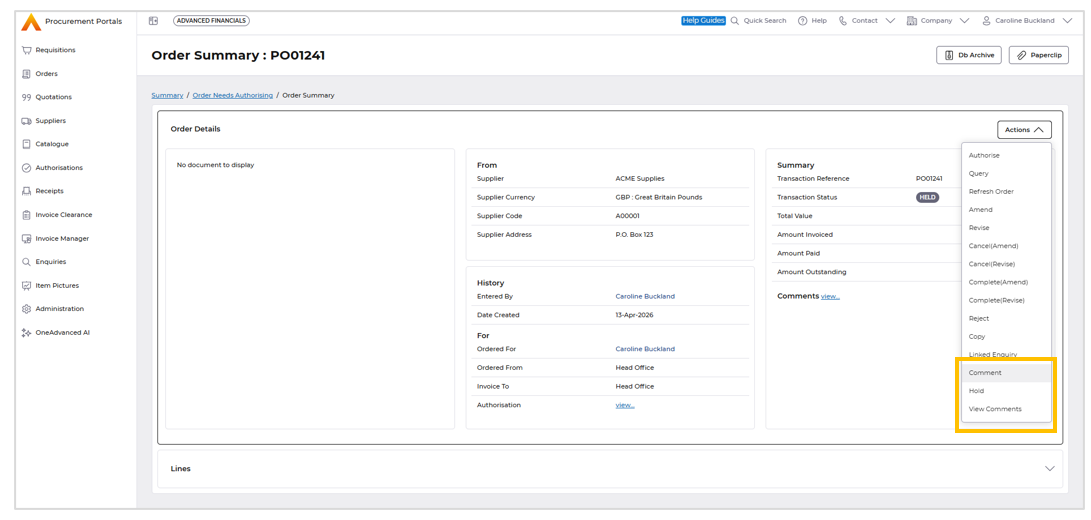
Now, after selecting 'Authorise', you can seamlessly:
- Add comments to provide additional context
- View existing comments to review previous notes
- Put the order on hold for further authorisation
This new functionality eliminates the need to navigate away from the authorisation screen, saving time and improving the overall user experience.
Commitment balance popup shown to requestor
Details of the change
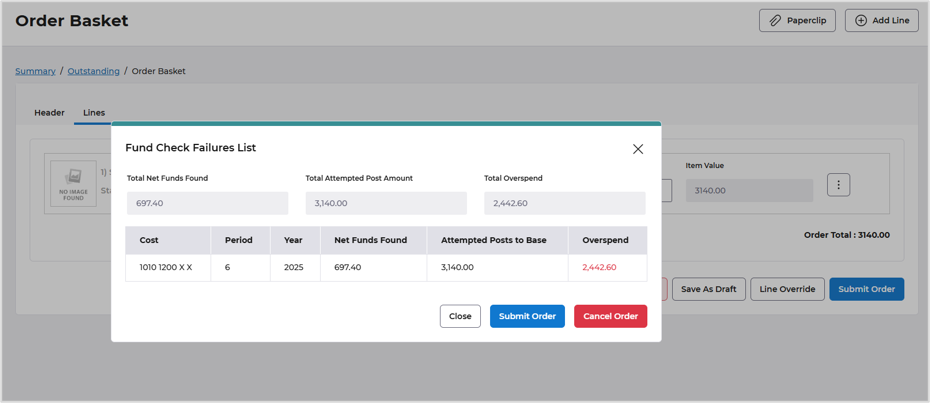
We recently enhanced our procurement portal by introducing funds checking messages for approvers. This functionality has now been extended to order creators, providing a more streamlined and transparent process.
When creating an order that exceeds the allocated budget, the requestor will now receive a clear warning message, accompanied by a popup that highlights the extent of the overspend. This update enables requestors to review and adjust their orders accordingly, ensuring better budget management and compliance
For more information see the link below:
August 2025 - Help | Financials
New message on Order submission screen.
Multi Line Return
Details of the change
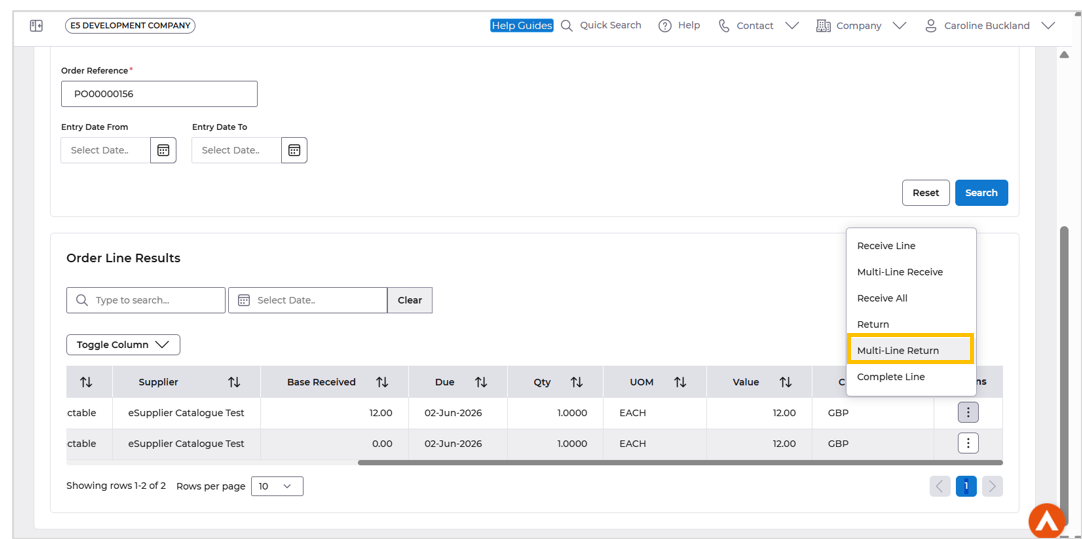
The Procurement Portal now supports multi-line returns, enhancing user experience and functionality. This feature, previously available in Core Financials, has been successfully extended to the Portals, providing a more streamlined and efficient process.
Pause quantity/value mismatch notification for a period of days
Details of the change
We have introduced an improvement to our procurement process mismatch flow. A new setting in Accounts Payable Company Controls allows a delay in the workflow message being sent to end users, to chase up missing receipts. If set, any mismatch notifications for quantity and value discrepancies will no longer be sent out immediately and will until the BEM hold days flag has passed.
To set the number of wait days, select the menus below:
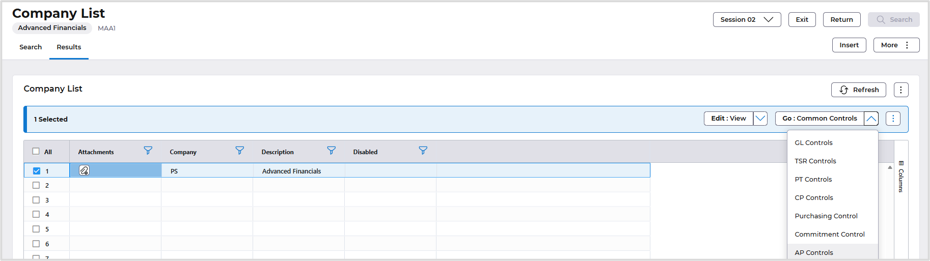
Systems Admin>Combined Company Controls
Locate your company and select Go>AP Controls
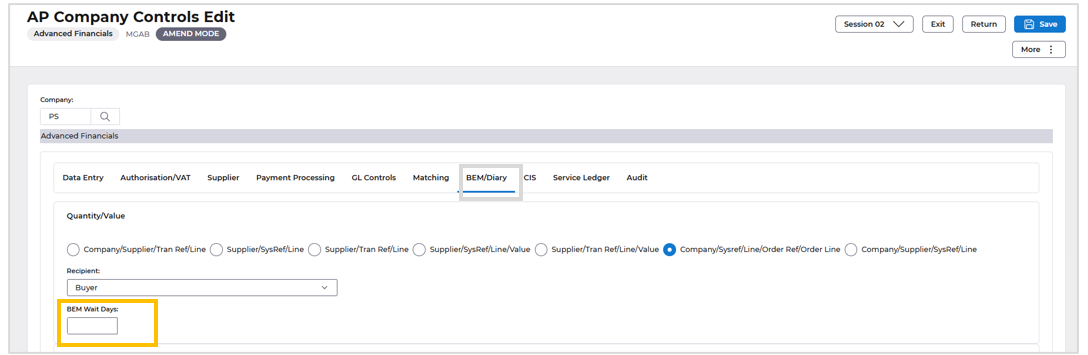
Use the Amend action and then select the BEM/Diary format.
Enter the number of BEM days in the BEM Wait Days field.
Save the change.
Order Closure – NHS Supply Chain
Details of the change
NHS Trusts that order goods through NHS Supply Chain receive a single consolidated invoice covering all orders for a period, rather than individual invoices per order. Because of this, individual purchase orders sent to Supply Chain should not remain open in Financials after they have been transmitted. If they do, staff may accidentally record goods receipts or try to match invoices against them, causing errors in the accounts.
Without an automated closure process, finance teams must either manually close every Supply Chain order after transmission, or risk incorrect goods receipts and invoice matching against orders that should no longer be active. This is not sustainable for Trusts that raise a high volume of Supply Chain orders.
Key Details Bottom of Form
A new automated Order Closure process that closes (completes or cancels) purchase orders after they have been sent to NHS Supply Chain. The process allows:
- Allow each Trust to configure which supplier is their Supply Chain supplier, and whether orders should be marked as completed (can be reopened if needed) or cancelled (permanent closure).
- Automatically find all outstanding orders for the configured Supply Chain supplier that have already been transmitted.
- Close those orders and all their order lines.
- Reverse any financial commitments that were recorded against those orders, so the budget is freed up.
- Update the general ledger (GL) to reflect the reversal of those commitments.
- Update supplier financial records (turnover and balances) to reflect the closures.
- Set an archive date on each closed order so it can be cleaned up in due course.
- Clean up any related records (authorisation records, diary entries) that are no longer needed.
- Provides the option to close orders either as a scheduled background job (e.g. overnight batch) or immediately when the order is transmitted (real-time), controlled by a configuration setting per Trust.
New Features applied to the product:
- New settings to the Common Purchasing Company Controls screen so each Trust can specify their Supply Chain supplier, choose the closure action (complete or cancel), and select when closure should happen (background job or on transmission).
Menu Access:
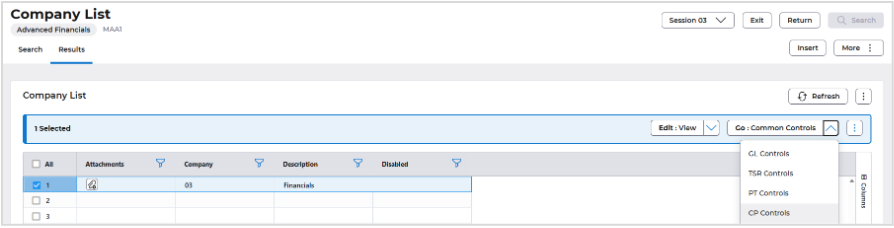
Systems Admin>Combined Company Controls
Locate your company and use the Go>CP Controls action.
Use the Amend action, locate the GL/Numbering format.
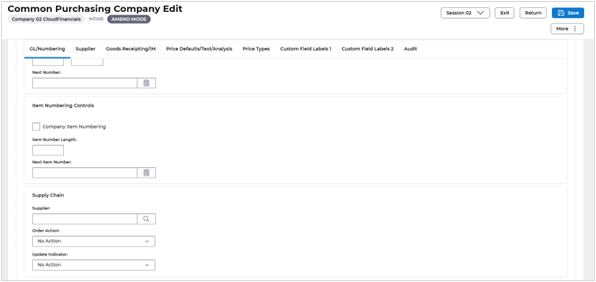
Supplier – enter the Supply Chain Supplier (this will have been pre-defined)
Order Action – select to either Complete or Cancel the Order
Update Action – select either Batch or Immediate – will do this on update to close or cancel and the process does not need to be scheduled.
Update processes rules:
- A new scheduled job (Process DPT) that finds transmitted Supply Chain orders and closes them in bulk, handling all the financial updates (commitment reversals, GL postings, supplier balances). This 1. can be scheduled overnight or ran during the day.
- Immediate Order Status Change for Trusts that need immediate closure, orders are closed at the point of being sent to Supply Chain.
Internal Delivery Location
Details of the change
PO Delivery Locations within NHS trusts it is common practice for Suppliers to deliver to an address which is not necessarily the end delivery point for the goods. Where the end (internal) delivery point differs from the supplier delivery address it is essential the internal delivery details are available to Trust staff to ensure goods reach that internal delivery location in a timely and safe manner.
A change has been made that when a flag is set on the location code to identify this is an internal location, an external location must be entered, thus setting up a relationship between the Internal and External Locations.
Points to note:
During Requisition Data Entry, if Internal Locations have been entered on the line, then a warning will be produced if the Header location is not for the defined External location for any line level internal location.
During Order Data Entry, If Internal Locations have been entered on the line, then an Error will be produced if the Header location is not the defined External location for any line level internal location.
During Auto Order processing, if a requisition contains internal locations that map to different external locations, then a new order will be generated for each new External location.
Phase 2: Enhanced Order Printing
In Phase 2, we plan to enhance the order print functionality to include the option to print both external and internal delivery locations on the order.
Step one, amend or create new location codes.
Menu access: Systems Admin>Module Controls>Purchasing Management Controls>Purchasing Controls>Maintain Locations Codes.
Use the Amend or Insert action.
Access the Details tab.
Flag the code as an Internal and then enter a predefined External code, adding a Depot is optional. The depot field is free format.
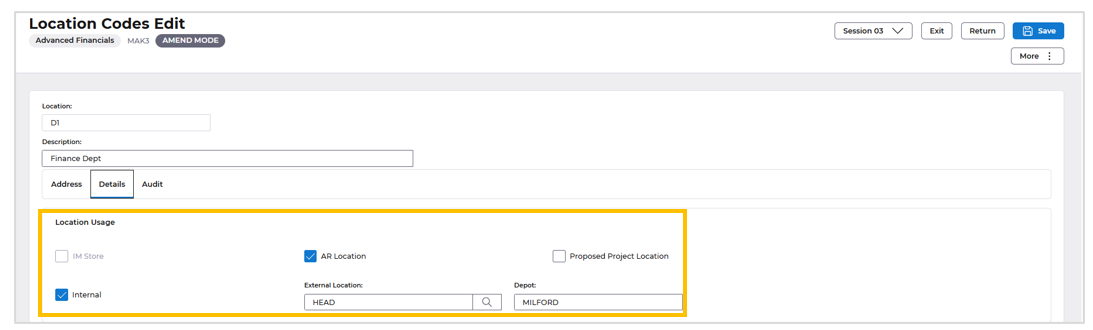
Save once complete.
Step two.
Creating Requisitions or Orders.
There is no change in this area for requestor, the system will just have new validation that if the Requisition/Order header is not an external delivery location and the line level Internal delivery location does not have a relationship (as described above) the user will retrieve an error message.

AFX Changes
Details of the change
- Fixed MCPX Person/Student transaction enquiries screen validation issues to prevent incorrect CPX10 error messages and ensure Favourite Enquiry functionality works as expected.
- Enhanced keyboard accessibility by enabling rail items to open drawers and update content using both Enter and Space keys.
- Resolved AG Grid selection persistence issues in Bank reconciliation screen, ensuring selected transactions remain retained during scrolling.
- Restored the AR Status column in the SI Document List screen to maintain feature parity with E5H5.
- Improved Quick Data Entry usability by automatically hiding empty horizontal tabs to streamline navigation.
- Fixed AR Cash Allocation (MBLA) scrolling issues to retain selected transactions and allocation values.
- Implemented thousand separator formatting enhancements across AP and AR screens to improve readability and consistency for numeric values in both grid and non-grid fields, including support for decimal and negative values.
- Resolved initial load issue in MEBD screen where the “Load More” button was not functioning until a manual refresh.
- Fixed issue where Company Summary search restrictions were not applied correctly when using Fast Prompt retrieval in Fixed Assets.
