Contents
May 2026
 Updated
by Caroline Buckland
Updated
by Caroline Buckland
Financials May Release
Release Notes
This document contains details of new and amended functionality included in the software update deployed on 11th of May 2026. We've rolled out several enhancements this month, including:
- General Ledger Journal Multi Level Approval
- Deferred to May from April
- Custom Fields Core Financials - Accounts Payable
- See April Release for detailed information
- Procurement Portal Changes
- Commas separators added
- Hide Custom Fields
- Paperclip images to preview window
• Accounts Receivable – Ledger Code Period Close
• AFX Changes
- Menu Changes
General Ledger Journal Auth
Details of the change
Enhanced Approval Process for Journals
We've introduced a new method that enables multi-level approval for Journals, enhancing the existing approval workflow. This update allows for a more structured and controlled approval process.
Key Features
- Sequential Approval: The first level of approval must be completed before the second level authorisers are notified, ensuring a step-by-step approval process.
- Multi-Level Authorisation: Structures are available to nominate valid authorisers at different levels, providing flexibility and control.
- Proxy Approvers: The new feature also allows for proxy approvers to be designated, ensuring that the approval process can continue uninterrupted even when the initial approver is absent.
More detailed information can be found in here:
https://financials.helpdocs.io/article/l4pvj0j9tu-general-ledger-journal-multi-level-authorisation
Core Financials Custom Fields
Details of the change
Custom data for Accounts Payable in now available.
These custom formats are particularly useful for interfaces but can also be utilised during data entry in Financials core. We've provided default variants for each transaction type.
These can be easily copied to add your company code. The fields and labels are fixed for each format.
These fields are available for ITKs, but API integration and Jasper reporting will be implemented in Phase 2.
For more information see the link below.
https://financials.helpdocs.io/article/uij13hurbh-april-2026#core_financials_custom_fields
Procurement Portal Changes
Details of the change
We have made the following change to the Procurement Portal.
- Commas separators added
Comma Values
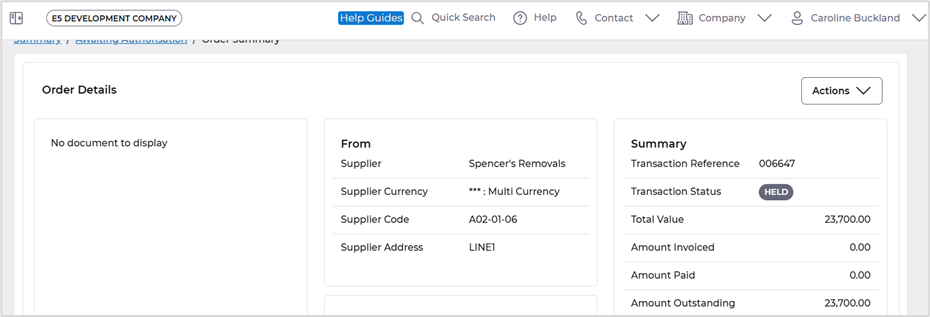
Comma formatting has been added to relevant enquiry screens in the Procurement Portal, enhancing the user experience by providing a clearer view of numerical values
Commas added in the enquiry screens.
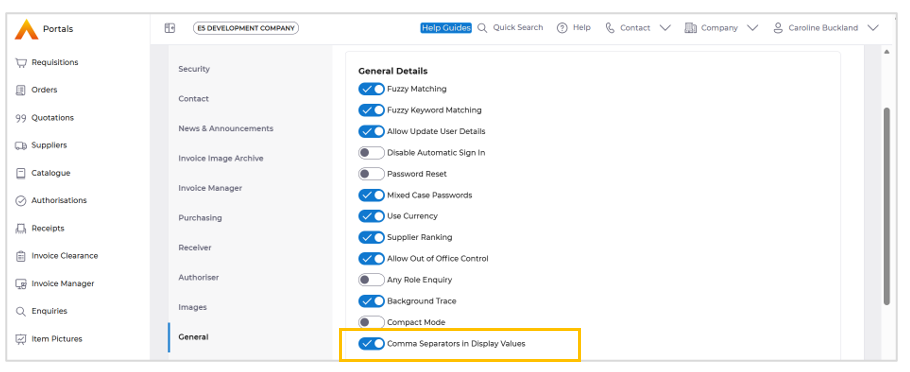
Access Administration>General tab, the Comma Separators in Display Values can be toggled on.
Displayed in Enquiries screens
Paperclip Images in Preview Window
Details of the change
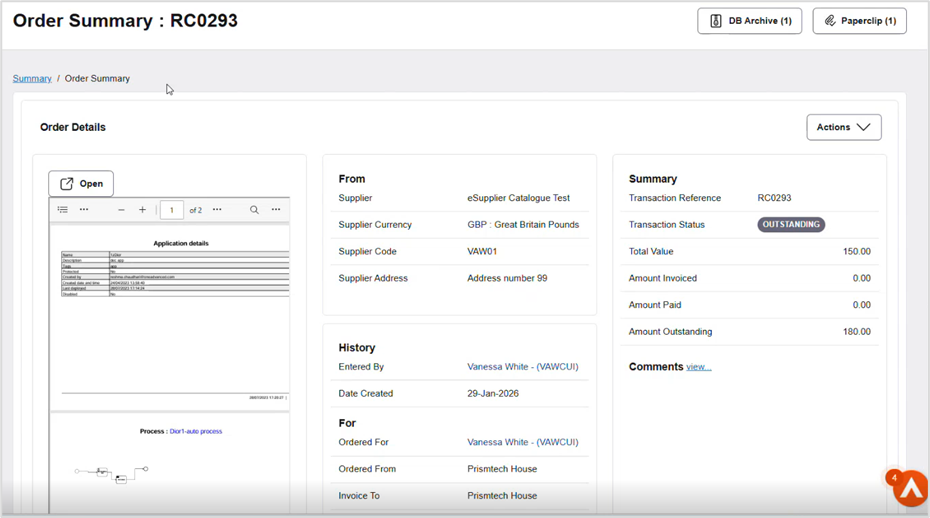
In the procurement portal we recently introduced a compact view which shows V1 documents. This has now been extended to paperclip items as well.
Compact view on Portals currently only allows for images from the V1 archive to be displayed in the image window. Attachments added via Paperclip cannot be viewed which provides an inconsistent user experience.
To view more details of the compact mode, select the link below.
https://financials.helpdocs.io/article/r5hyatmosp-february-2026#procurement_portal_improvements
Example
The paperclip attachment will be displayed on the left side of the screen.
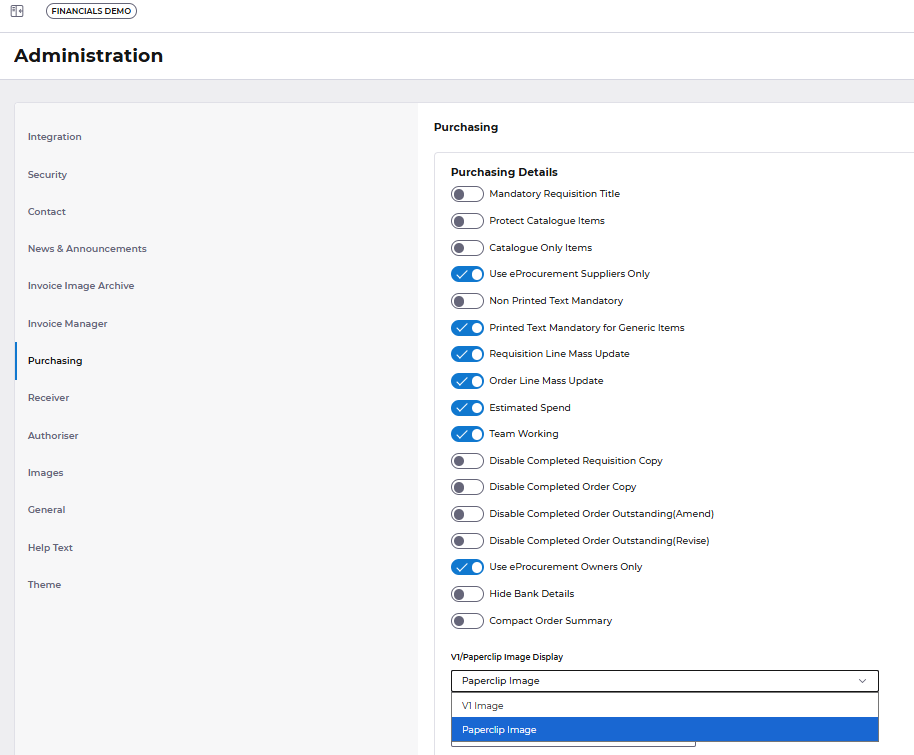
Administration>Purchasing
V1/Paperclip image display. Select Save.
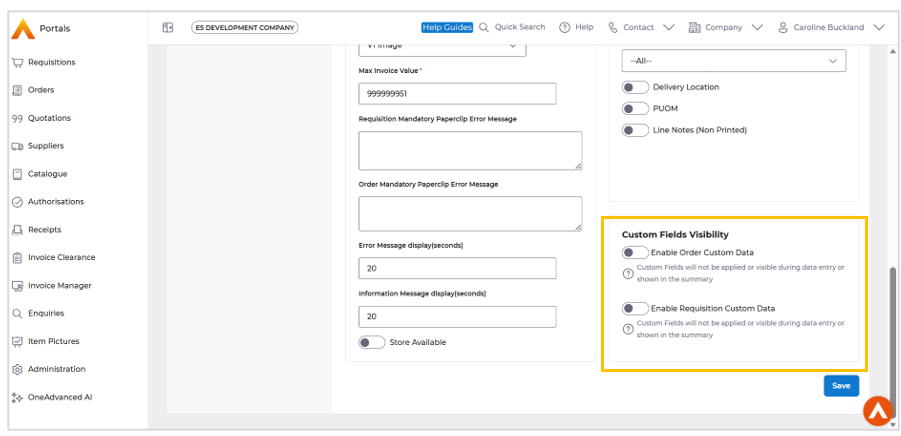
Custom Data visibility
In our April release, we introduced custom data fields. Following user feedback, we've made these fields optional, as some organisations didn't require them and requested the ability to remove them from view
Access the following menus:
Administration>Purchasing
The Custom Fields Visibility can be toggled on/off
Accounts Receivable Ledger Period Close
Details of the change
A new feature has been added to Accounts Receivable that will allow customers to close their financial period/year at ledger level.
A new setting on the Accounts Receivable Company Controls will allow a user to then add the new period and year on the Ledger Code.
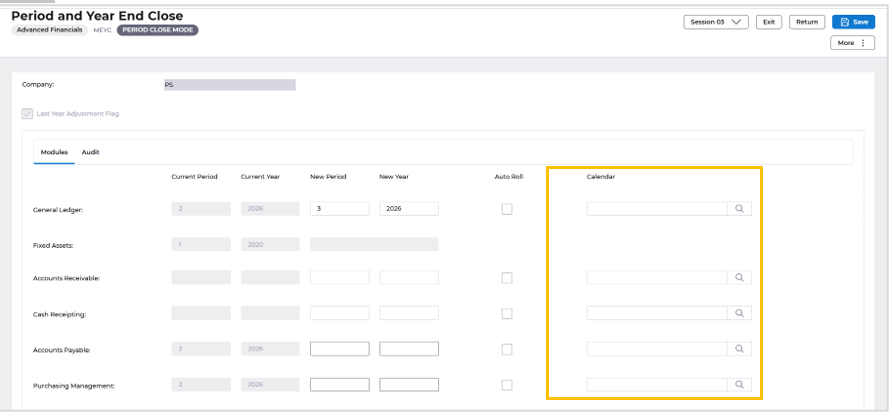
During period end a new option has been added to the Period and Year End menu to allow for a separate closure of each Ledger code.
Example Setup
A new field has been added to the Accounts Receivable Company Controls screen to determine whether the current default GL year/period from AR will be derived from the AR ledger code associated with the customer of the posting rather than the default GL year/period as defined on the AR Company Controls screen.
Setup Required
Accounts Receivable Company Controls
Access the following menus:
Systems Admin>Combined Company Controls
Enter your company code and then select the Go>AR action.
Amend the company controls and select the General Ledger tab.
Flag the GL Period/Year at AR Ledger Level
Remove the Current Period / Year from this format
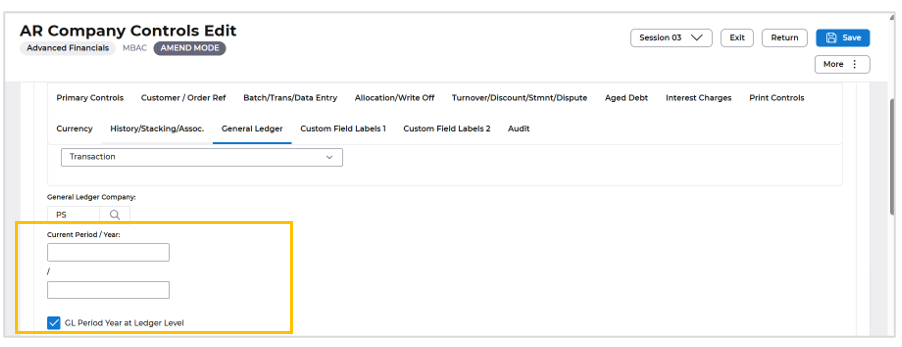
Save the change.
To check this setting access the following menus:
General Ledger.GL Processes>Period and Year End Close>GL Period and Year End
Accounts Receivable Ledger Controls
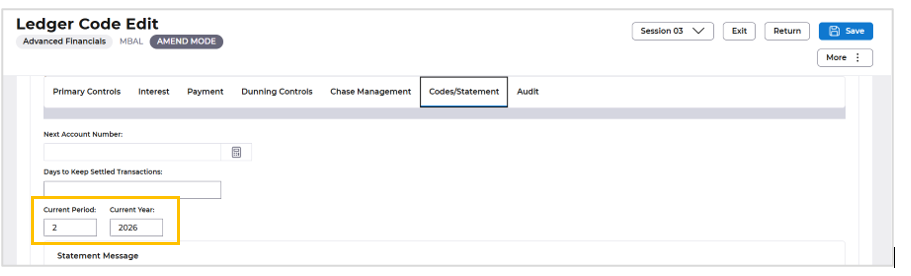
New fields have been added to the AR Ledger Controls screen to determine the current default GL year/period from AR for this ledger code when the new flag has been set on the AR Company Controls.
Posting to GL will be made using this default GL year/period for the customer of the posting rather than the default GL year/period as defined on the AR Company Controls screen.
Access the following menus:
Systems Admin>Module Controls>Accounts Receivable Controls>AR Customer Controls>Ledger Codes
Locate your Ledger code and use the Amend action.
Access the Codes/Statement format.
The new fields will be displayed.
Current Period / Year.
Period and Year End List
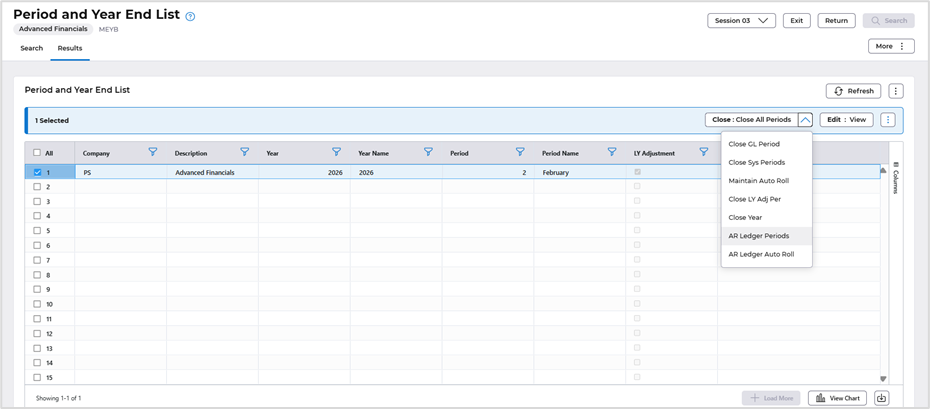
The Period and Year End List screen have been changed to have two new actions to specifically allow the closure of the period held against the AR ledgers when the new GL Period / Year at AR Ledger Level flag has been set on the AR Company Controls screen.
These actions transfer control to a new screen that will be similar to the existing period end close screen but displays the current GL period and year for each ledger code in the AR company along with the ability to maintain an auto roll facility against each AR ledger.
Menu access:
General Ledger>GL Processes>GL Period and Year End Close> GL Period and Year End
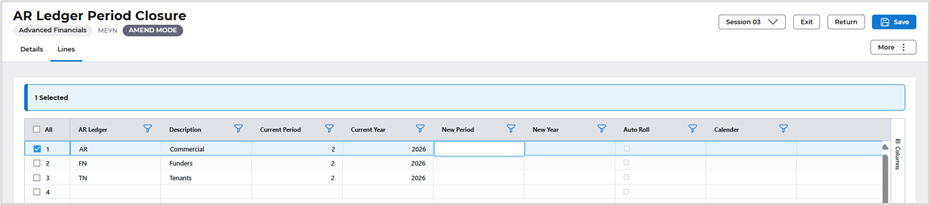
AR Ledger Period Closure
Once the AR Ledger Periods action has been applied a new screen is displayed that will allow a user to close multiple periods across the different ledger codes within AR.
This screen will also allow for the maintenance of the AR Auto Roll facility at AR ledger code level. Upon entry to the screen, all the ledger codes that exist for the AR company will be shown along with their existing GL year/period settings and depending upon the mode entered, either the ability to amend each of the GL year/periods or allow the auto roll setting to be populated for each ledger.
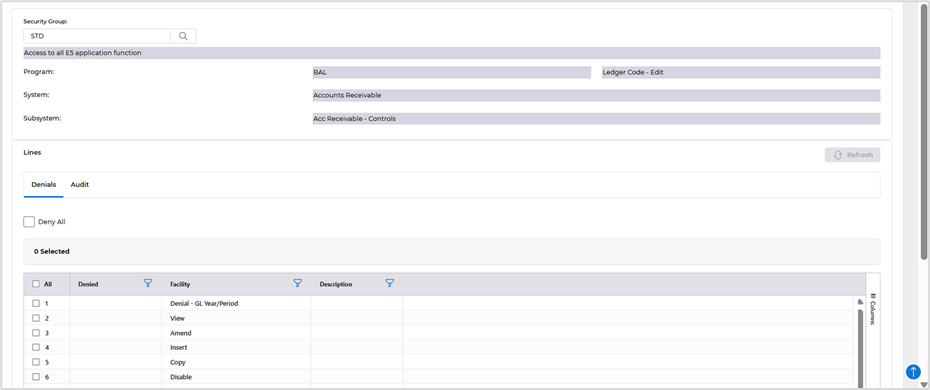
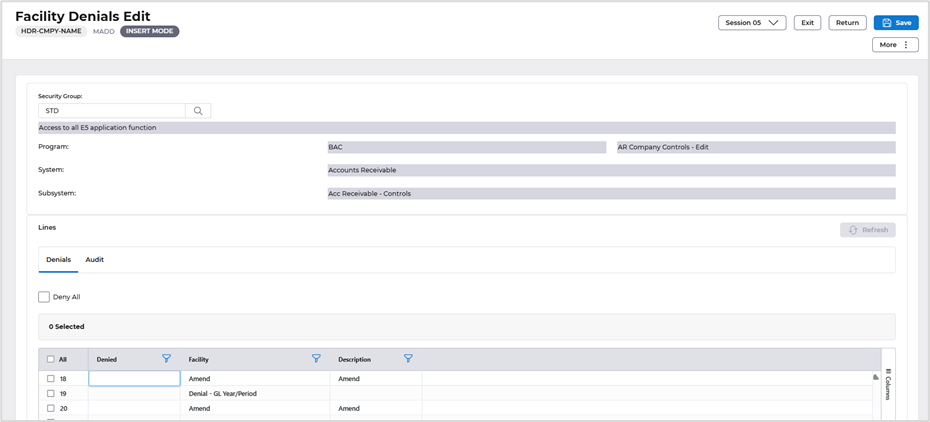
Facility Denials
New denials are available on the following programmes.
Ledger Code MBAL
MBAC – AR Company Controls
Read this article to learn more about security and denial programmes
https://financials.helpdocs.io/article/osqjmo4ozv-changing-security-access-to-a-user
Data Entry changes
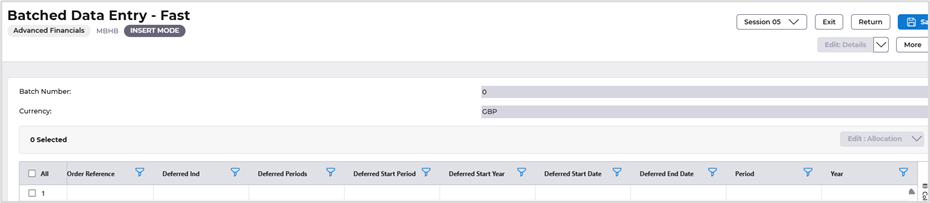
Cash/Adjustment Entry
Menu access:
Accounts Receivable>AR Processes>AR Data Entry> Cash/Adjustment Entry
Period and Year field has been moved from the header and will default onto the lines where the ledger code is nominated.
AR Cash Allocation
Menu access:
Accounts Receivable>AR Processes>Cash Allocation>Allocation
The AR Cash Allocation screen MBLA has been changed to respect the new GL Period / Year at AR Ledger Level flag when it has been set on the AR Company Controls screen. When this flag is set, the GL year/period present on the cash allocation header screen MBLA will no longer be defaulted from the AR controls but with instead be retrieved from the year/period held against the AR ledger code of the customer for the document, when not entered on the screen.
SI Document Entry
Menu access:
Accounts Receivable>AR Processes>AR Data Entry> Insert Invoice/Credit Note
The SI Document entry screen MODB has been changed to respect the new GL Period / Year at AR Ledger Level flag when it has been set on the AR Company Controls screen. When this flag is set, the GL year/period present on the document header screen MODB will no longer be defaulted from the AR controls but with instead be retrieved from the year/period held against the AR ledger code of the customer for the document, when not entered on the screen
AFX Changes
New Accounts Payable Data Entry screen
Details of the change
We've introduced an optional change to the Accounts Payable Data Entry process. This update is not enabled by default and can be activated upon request by individual customers.
This is now available to all customers.
We're seeking your feedback on this change before considering it for permanent implementation. Your input will help us refine the update and ensure it meets your needs.
Please raise a support case if you wish to trial the new screen.
This also relates to the logging screen, if line level logging is activated
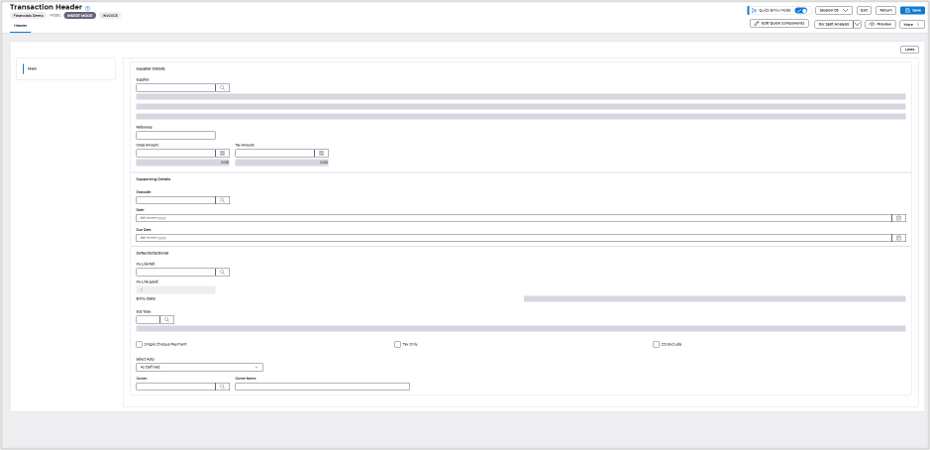
New format of AP Data Entry screen.
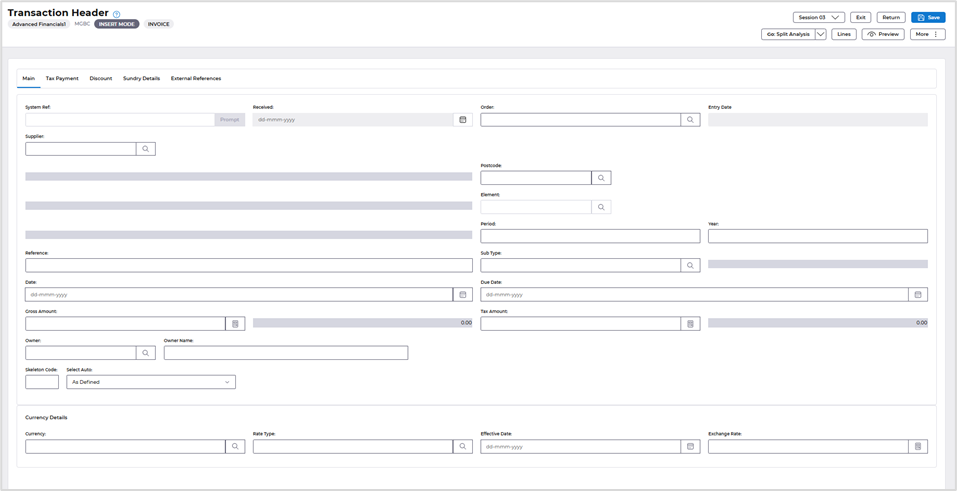
Quick Data Entry Mode
We've also introduced a new feature to streamline your workflow:
Quick Data Entry mode. This enhancement allows you to hide fields that are never used during the AP Data Entry process, making the process more efficient and tailored to your needs
There is a new button available ‘Quick Entry Mode’
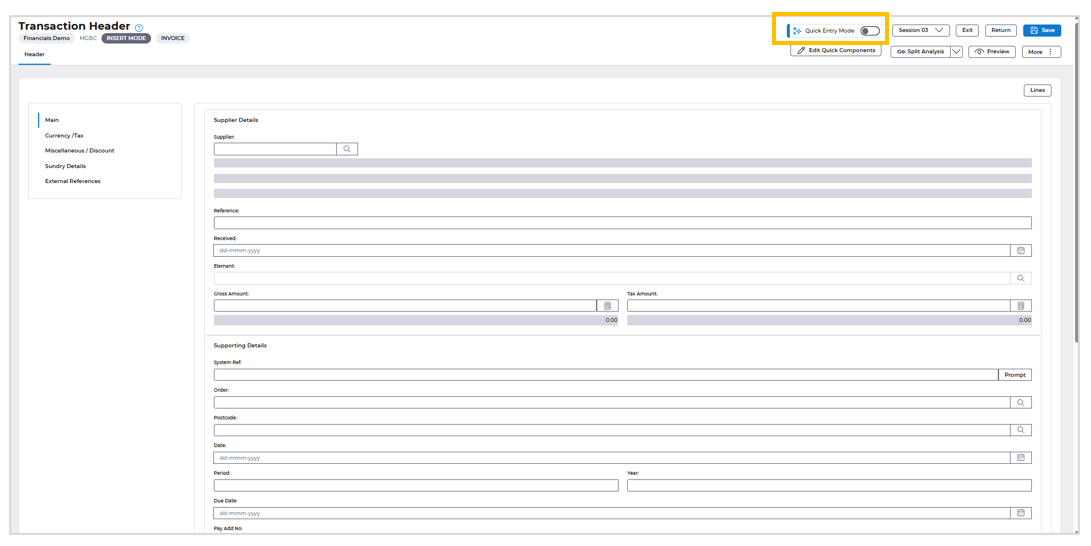
Firstly, the fields you require to hide need to be setup.
Select the Edit Quick Components button.

Toggle the buttons to remove the fields from view.
You have many formats to view here, Main, Tax Payment, Discount, Sundry Details and External References.
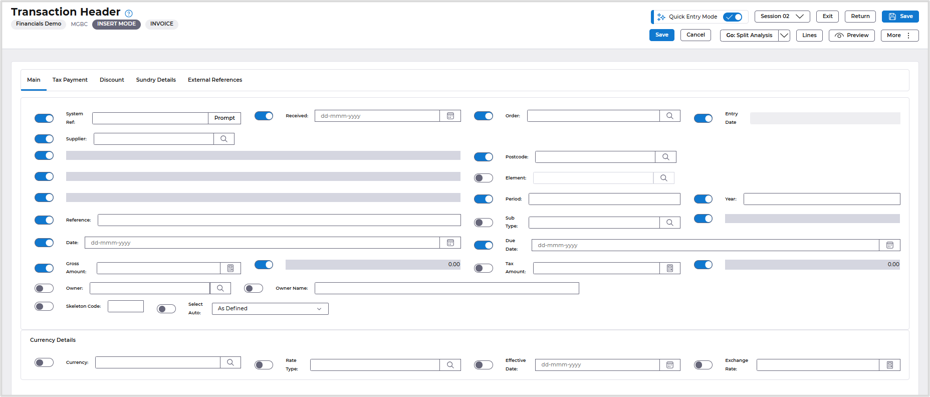
Once Complete, select Save.
The new screen is applied when you select the Quick Entry Mode button.
Menu Changes
Deferred Purge added to menu.
Menu access
Systems Admin>System Wide Controls>Deferred Purge
When accessing the option any tables that have purged items will be shown.
The amend option against the table can be used, that then allows you to delete any items that were purged in error.
To remove an item from the purge process, enter D on the CMD line of the item and press enter on the keyboard. This will remove the item from the list.
