Contents
July 2026 Release
 Updated
by Caroline Buckland
Updated
by Caroline Buckland
Release Notes
This document contains details of new and amended functionality included in the software update deployed on 13th July 2026. We've rolled out several enhancements this month, including:
June update re-released and the following enhancements are being included.
Additional Option for Inventory Replenishment
- File Manager API Update
- Remove Quotations Menu from the Portal
- Display Order Owner on the Order Summary Screen
- Admin Flag for ‘Show Tax Details / Show Tax Summary’
- Owner Identification on the Receipts Workbench
Additional Option for Inventory Replenishment
What it does now: Stock reordering was triggered only when the physical quantity of an item fell below its reorder level. This could trigger reordering too late – for example, where outstanding store requisitions would take stock down to zero once picked, but reordering hadn’t yet kicked in because the physical quantity still looked healthy.
What changed: An additional option has been added so that outstanding demand (such as store requisitions) can be taken into account when deciding whether to reorder.
Physical (existing behaviour) — The system works exactly as it does today. No change for customers who select this option.
Notional (new behaviour) — The system now generates a purchase request whenever the projected stock level falls below the maximum stock level, not just when it falls below the reorder level. This means replenishment is triggered earlier and more frequently, keeping stock topped up to the maximum at all times.
Benefit: Stock is replenished at the right time, reducing the risk of running out of stock unexpectedly.
The New Setting
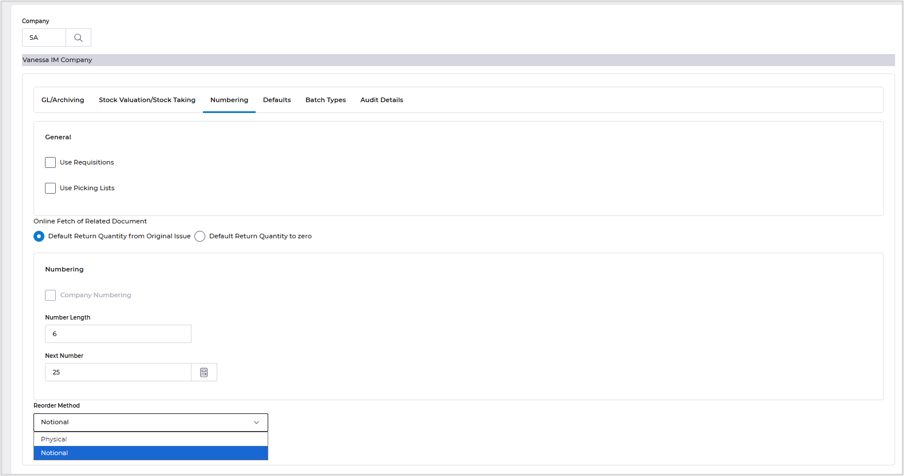
The screenshot below shows the new "Reorder Method" option on the IM Company Controls screen. Selecting "Notional" activates the new behaviour.
Menu access:
Systems Admin>Combined Company Controls
Locate your company and select Go>IM
Access the Numbering format. New Reorder Method is displayed at the bottom of the screen.
How This Meets the Requirement
The key difference with the new "Notional" setting is:
The system now looks at how much stock is physically in the store, then subtracts what has already been requested by departments (even if it hasn't been picked yet). It then works out how much needs to be ordered to bring the total back up to the maximum stock level.
If there is already a purchase request or order in the pipeline, the system takes that into account — it won't order the same stock twice.
Every time a new demand is placed against the store, the system immediately checks whether more stock needs to be ordered. It doesn't wait until stock is physically picked.
This directly addresses the customer's concern: the system now generates demand at the right time — when requests are placed, not after stock has already gone.
Worked Example
The following walkthrough demonstrates the new behaviour using a test item with these settings:
Reorder Level: 20 (the point below which we want to keep stock topped up)
Reorder Quantity: 50
Maximum Stock: 70 (Reorder Level + Reorder Quantity = 20 + 50)
Step 1: Starting Position
We start with a new item in the store. The opening balance is zero.


Step 2: Put Stock Into the Store
We create a stock adjustment to put 40 units into the store, giving us an initial stock of 40.
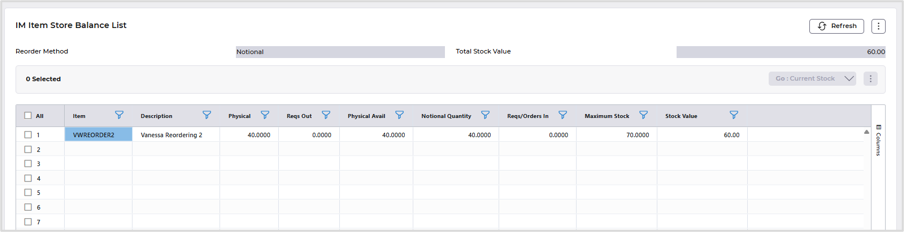
Step 3: First Demand — Request for 22 Units
A department requests 22 units from the store. The system now calculates: we have 40 in stock but 22 is spoken for, leaving an available balance of 18. Since 18 is below the maximum stock level of 70, the system immediately creates a purchase request for 52 units (70 - 18 = 52) to bring the projected stock back up to 70.

Step 4: Second Demand — Request for 10 More Units
Another department now requests 10 units. The system calculates: we have 40 physically in stock, 32 is requested in total (22 + 10), and 52 is already on order from the first purchase request. Projected stock = 40 + 52 - 32 = 60. Since 60 is below the maximum of 70, the system creates a new purchase request for 10 units (70 - 60 = 10) to top back up to maximum.
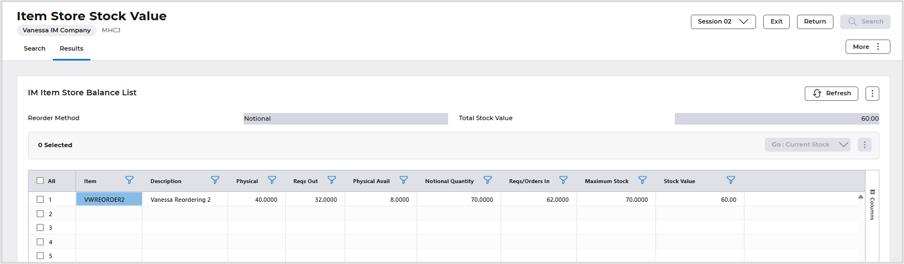
Key point: The system knows that 52 units are already being ordered, so it only requests the additional 10 needed. It does not create a duplicate order. The total on order (52 + 10 = 62) is correct — when all stock arrives and all demands are fulfilled, the store will be back at 70.
Step 5: The Two Purchase Requests
The screenshot below shows both purchase requests that were generated:

Request 1: 52 units — raised when the first demand for 22 was placed
Request 2: 10 units — raised when the second demand for 10 was placed
Summary
With the "Notional" reorder method enabled:
Stock replenishment requests are raised as soon as demand is placed — not after stock is physically picked. This gives the purchasing team earlier visibility and more time to act.
The system keeps stock topped up to the maximum level, creating a purchase request for exactly the shortfall each time a new demand is placed.
Existing orders are taken into account, preventing duplicate purchasing.
Customers who do not want this behaviour can leave the setting on "Physical" and nothing changes for them.
This ensures critical items remain continuously in stock, reducing the risk of back orders and gaps in supply that could impact patient care.
File Manager API Update
What it does now: Integrations are being built to let customers automatically extract files from File Manager and place them onto their own SFTP servers. The existing interface didn’t allow files to be renamed or removed after export.
What changed: The File Manager interface (API) has been updated to support renaming and deleting files.
Benefit: Automated file exports can be managed cleanly, avoiding duplicate exports of the same files.
Remove Quotations Menu from the Portal
What it does now: The Quotations functionality was always visible in the portal, even for customers who don’t use it.
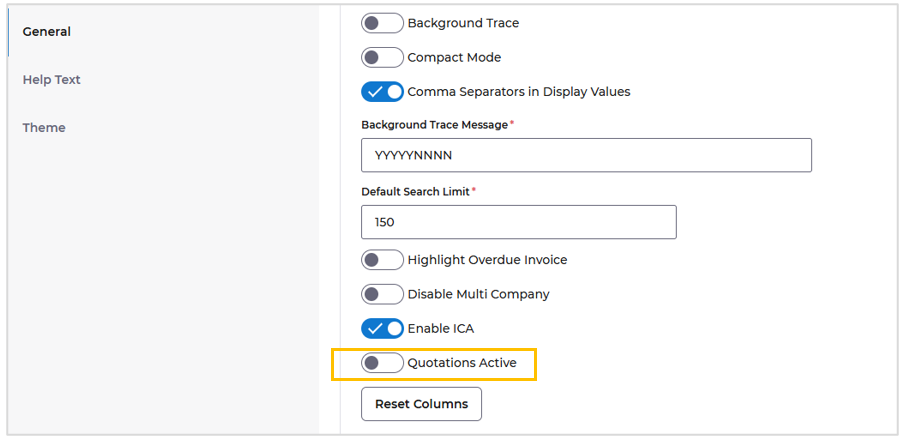
What changed: An admin-controlled toggle now let’s administrators show or hide the Quotations menu for portal users.
Menu Access: Administration>General
Benefit: Customers who don’t use Quotations can hide it, giving users a cleaner, less cluttered experience.
Display Order Owner on the Order Summary Screen
What it does now: The Order Owner drives many of the workbench counts in the portal, yet it wasn’t shown on the order summary screen. Other user-type fields (Buyer, Creator) were displayed, so users often mistook one of these for the owner. This generated frequent queries about why particular orders appeared on the portal.
What changed: The Owner field is now displayed on the Order and Requisition Summary screens (shown as a link).
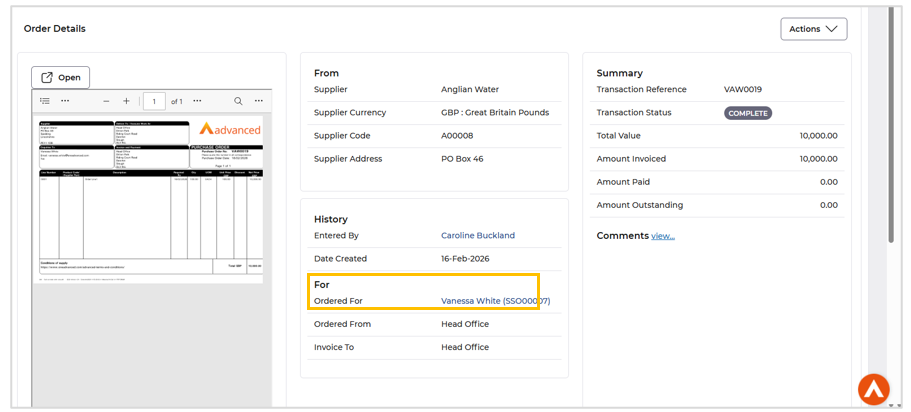
Benefit: Users can immediately see who owns an order, reducing confusion and support queries.
Admin Flag for ‘Show Tax Details / Show Tax Summary’
What it does now: In the portal, end users could open the tax details and change the VAT rates set against a supplier. Some customers need this ability (as in full Financials), but others want to prevent end users from changing tax information.
What changed: A new admin-controlled toggle lets each customer configure whether the tax details can be changed for orders and requisitions.
Menu Access: Administration>Purchasing
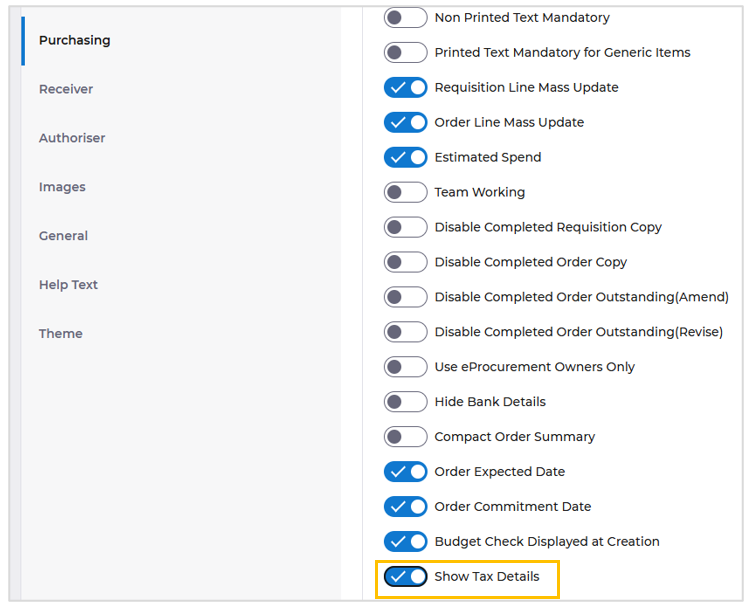
Flag on, the Tax details toggle is removed it the Show Tax Details flag is toggled off.
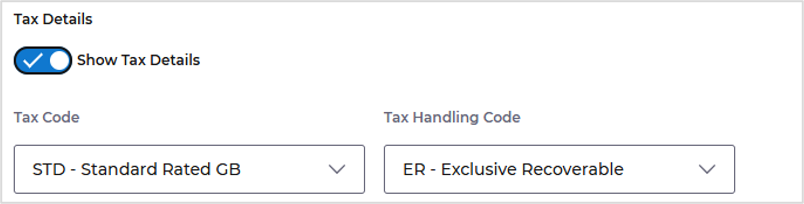
Benefit: Customers can lock down tax editing where they don’t want end users altering VAT rates, while others can keep it available – configurable per customer.
Owner Identification on the Receipts Workbench
What it does now: Unlike other workbenches – which show counts personal to the logged-in user – the Receipts Workbench showed all purchase orders for the delivery location the user is linked to. Where several users raise POs for the same location, everyone sees everyone else’s POs, so users can’t focus on the ones they are responsible for receipting.
What changed: A new owner-based ‘My Receipts’ filter has been added to the Receipts Workbench.
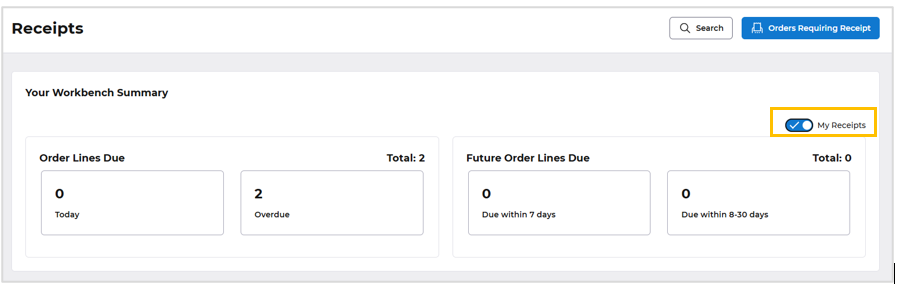
Benefit: Users can filter down to the POs they are personally responsible for receipting (those future-due or overdue), making the workbench genuinely useful for managing their own work.
AFX Changes
Fixed accessibility issues by correcting radio group labelling in the Supplier List and Supplier Name Edit screens, ensuring proper screen reader support and compliance with accessibility standards.
- Enhanced keyboard accessibility by enabling the More (kebab) menu and Session dropdown to be activated using the Enter key across the application.
- Updated page titles to dynamically reflect the currently displayed screen or content, improving navigation and accessibility.
- Resolved AFX connection and concurrency issues by increasing the Undertow Worker Thread Pool, resulting in improved application stability and performance underload.
- Fixed an issue where the SI Document button in MOCA failed to open or display document details after selecting a contract.
- Corrected the default Row/Column combination in the GL Structure Net Balance Enquiry screen to prevent validation errors in AFX.
- Implemented Exe button functionality within dialog boxes, enabling the expected execution behavior.
- Enhanced AFX search usability by defaulting the search filter to the currently selected AG Grid column, improving filtering efficiency.
- Fixed the AFX Calendar issue where pressing Enter after navigating to the next year incorrectly selected all dates, ensuring accurate date selection behavior.
