Contents
February 2026
 Updated
by Caroline Buckland
Updated
by Caroline Buckland
Financials February
Release Notes
This document contains details of new and amended functionality included in the software update deployed on 9th of February 2026.
We've rolled out several enhancements this month, including:
- BYOBI – General Ledger, Purchase to Pay, Sales to Order and Fixed Assets
- Procurement Portal Changes
- ITK processing changes
- Menu Changes
Bring Your Own BI (BYOBI)
Details of the change
We've expanded our Bring Your Own BI (BYOBI) offering to now cover the Purchase to Pay, Order to Cash, and Fixed Assets modules. This enhancement also provides completion of the General Ledger tables.
Procurement Portal Improvements
Details of the change
This release introduces a new compact summary view in the procurement portal, designed to improve visibility and decision-making-particularly for authorisers.
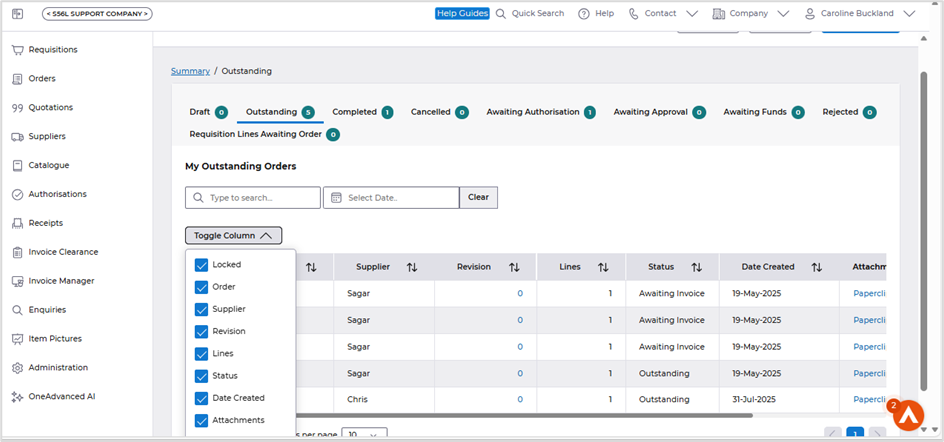
The 'Toggle column settings' feature has been implemented, allowing you to customise the fields displayed when viewing a list. Once selected, these preferences will be retained until you choose to reset them to the default configuration.
Key points:
- Added new admin-level configuration settings for Compact Order Summary and Compact Invoice Summary, ensuring existing customer UX remains unchanged unless explicitly enabled.
- Can be set at a global level or by individual user
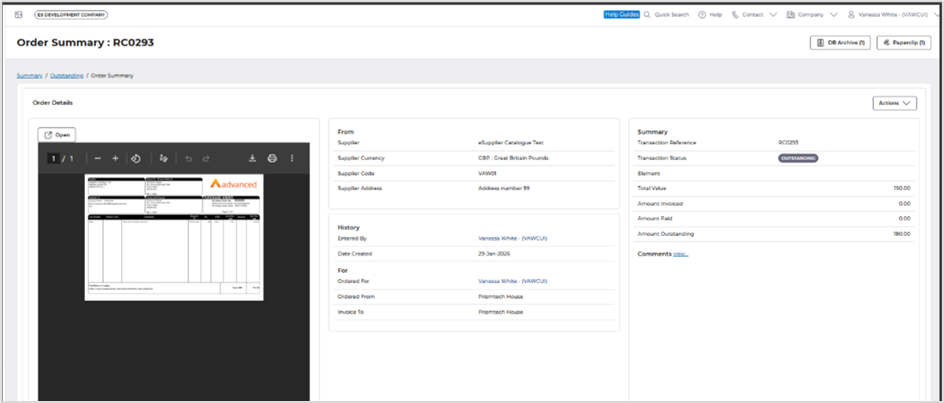
- When enabled, users are presented with a single summary screen that mirrors the Invoice Amend layout:
- Item image displayed in a left-hand panel
- Key header information shown alongside the image
- Selected line-level details displayed below
- The compact layout consolidates critical information onto one screen, reducing navigation and improving efficiency during review and authorisation.
- Primary benefit is for authorisers, who can now review all relevant order or invoice details in one place before approving.
- Overall, this enhancement adds flexibility through configuration while delivering a more streamlined and effective authorisation experience.
Setting Compact Order Summary mode at Global level.
To switch on for all users, follow the steps below.
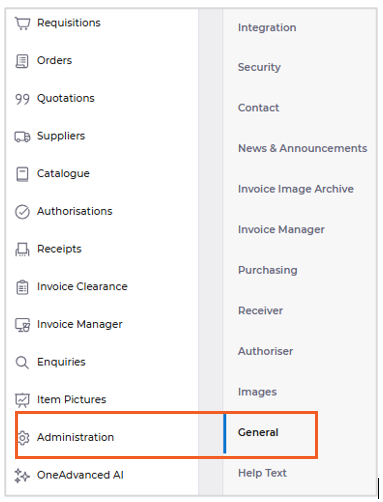
Access the Procurement Portals>Administration>General tab
Select the Compact Order Summary
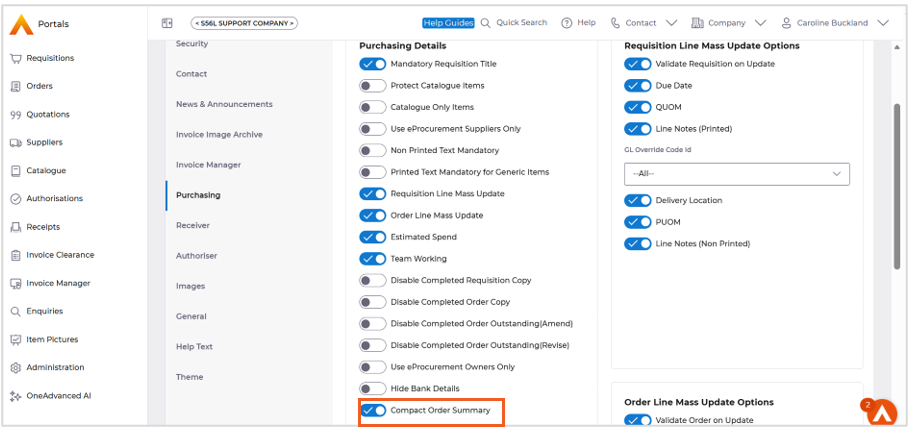
Select Save.
Compact Order Summary User setting
Access My Account

Access the Application Settings
The Compact Order Summary option is displayed.
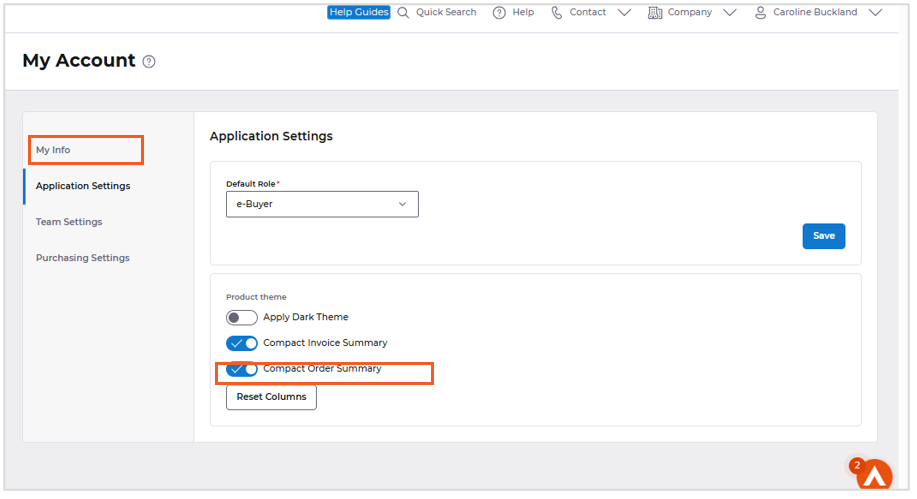
Select Save once complete.
When you access a summary screen or an Authorisation screen, the following new summary screen will be displayed.
Toggle columns reset at user and general account level.
Access a summary list within the Portals.
The Toggle Column dropdown will appear, allowing you to select or deselect all chosen columns. Your column preferences will be retained when you log out of the portal and sign back in.
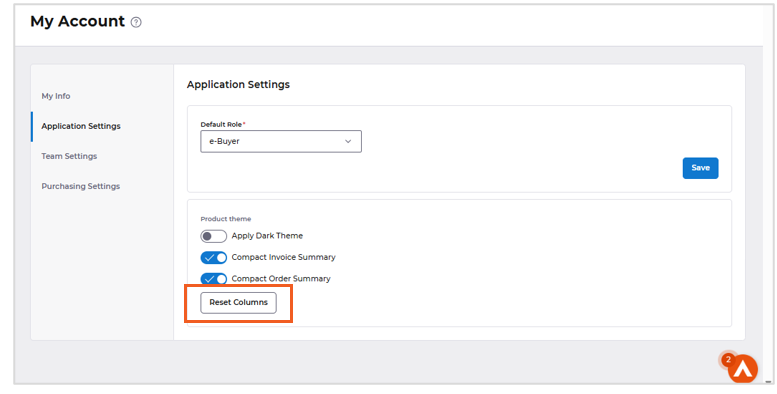
Reset can be performed at either the user level or the global level.
User level.
Access My Account

Select Application Settings, the Reset button is displayed. Select to Save.
To reset at a global level, access the Administration option followed by General Tab.
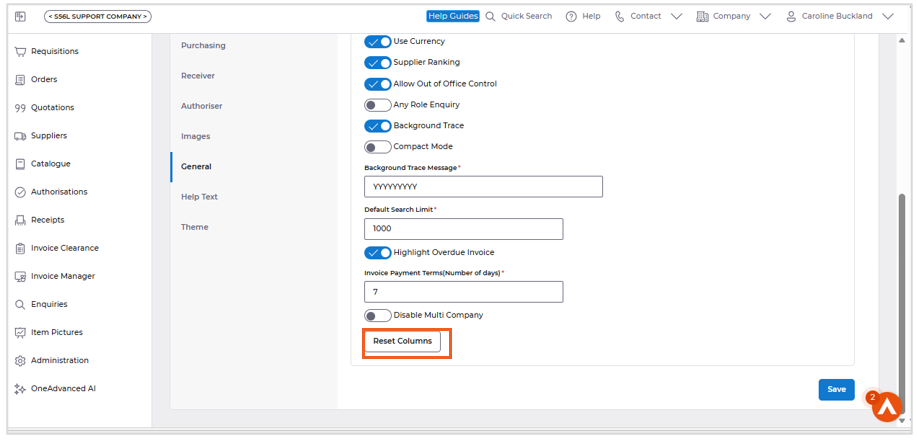
Select Save.
AFX Improvements
Details of the changes
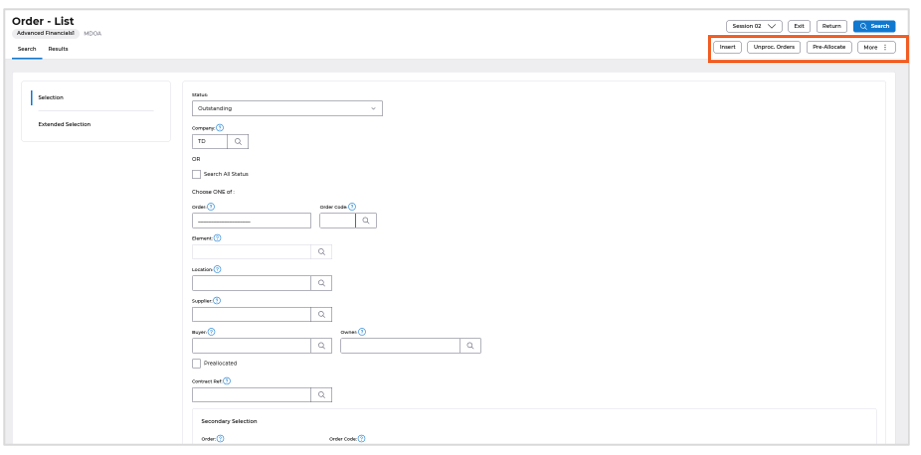
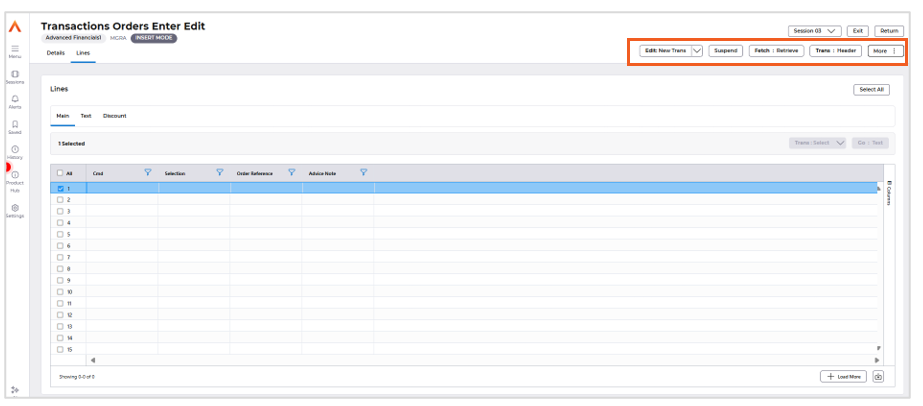
- Updated the Transaction Orders Enter Edit screen (MGRA) by reintroducing key action buttons that were previously nested under the “More” (kebab) menu.
- Updated the Transaction Header (MGBC) screen by moving ‘Invoice’ field to the top of the screen.
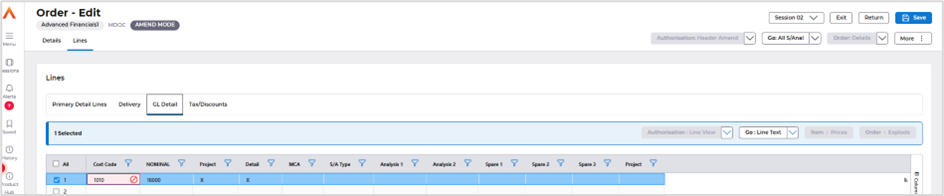
- Added the missing variant of the Order Edit screen (MDOC) in AFX.
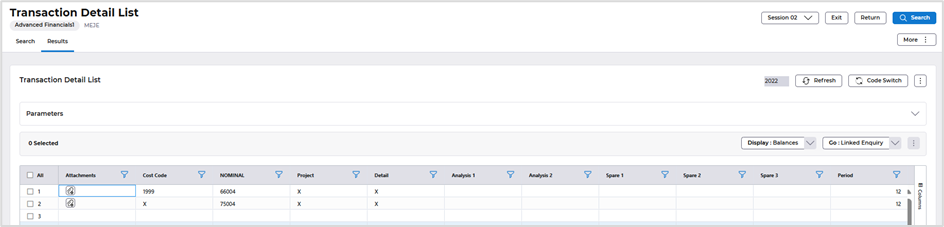
- Updated the Transaction Detail List (MEJE) screen by moving the “Year” Field from Search to Results tab (above AG grid).
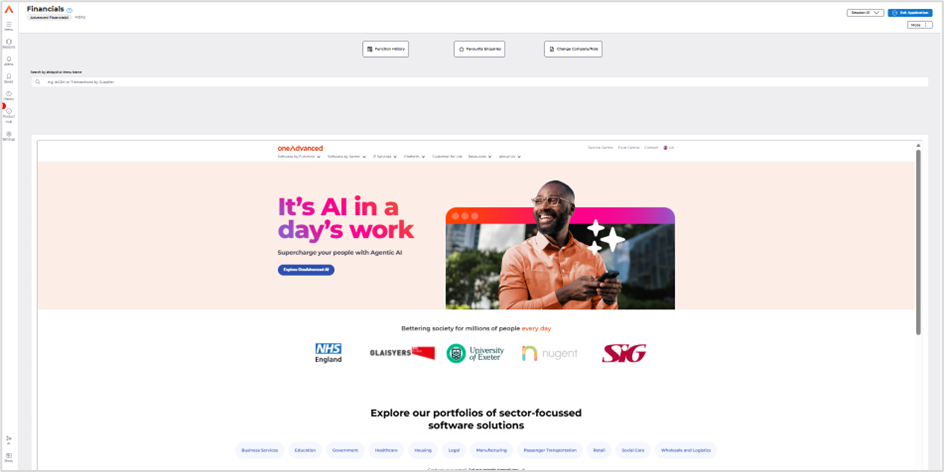
- Improved AFX home page usability by increasing the iFrame size, ensuring better content visibility.
- Fixed an issue in MQRA - Parameter help dialog where an unnecessary column of radio buttons appeared, aligning the behaviour with e5h5.
- Improved visibility of locked records in AFX AG Grid by adding a left-side visual stroke, making locked rows easier to identify while preserving existing indicators.
- Fixed a UI issue on Account Detail Enquiry - MEJB screen where the code switch button appeared inconsistent.
MDOA – Order List screen
Buttons moved from more menu.
MGRA – Transactions Order Enter Edit (Accounts Payable Data Entry)
MGBC – Accounts Payable Data Entry
Invoice added to top of screen.

MDOC – Order Edit screen
General Ledger coding description fixed.
MEJE – General Ledger Enquiries Transactions by Account Code
Year field added
Improved AFX home page usability by increasing the iFrame size, ensuring better content visibility.
ITK new functions for API automatic load
Details of the change
The new ITK functionality which includes allowing the same ITK to be used by multiple users with each user using their own unique filename for the ITK. Changes have also been made to the file processing when the file is called via an API.
What's Changed?
On the ITK interface Edit screen (MST2), if the filename contains the string &&USR, at runtime, this string will be replaced with the Financials user id. This will allow the same ITK to be used by multiple users with each user using their own unique filename for the ITK.
Note, the user id in the filename must be in upper case.
For example, the following ITK to upload GL Journals, has the filename:
&&USR.gljrnl.csv
Access the following menus: Data Upload Menu>ITK Menu>ITK Interface Definition.
Locate the ITK you wish to change and then use the Amend action.
ITK new functions for API automatic load
Details of the change
The new ITK functionality which includes allowing the same ITK to be used by multiple users with each user using their own unique filename for the ITK. Changes have also been made to the file processing when the file is called via an API.
What's Changed?
On the ITK interface Edit screen (MST2), if the filename contains the string &&USR, at runtime, this string will be replaced with the Financials user id. This will allow the same ITK to be used by multiple users with each user using their own unique filename for the ITK.
Note, the user id in the filename must be in upper case.
For example, the following ITK to upload GL Journals, has the filename:
&&USR.gljrnl.csv
Access the following menus: Data Upload Menu>ITK Menu>ITK Interface Definition.
Locate the ITK you wish to change and then use the Amend action.
ITK new functions for API automatic load
Details of the change
The new ITK functionality which includes allowing the same ITK to be used by multiple users with each user using their own unique filename for the ITK. Changes have also been made to the file processing when the file is called via an API.
What's Changed?
On the ITK interface Edit screen (MST2), if the filename contains the string &&USR, at runtime, this string will be replaced with the Financials user id. This will allow the same ITK to be used by multiple users with each user using their own unique filename for the ITK.
Note, the user id in the filename must be in upper case.
For example, the following ITK to upload GL Journals, has the filename:
&&USR.gljrnl.csv
Access the following menus: Data Upload Menu>ITK Menu>ITK Interface Definition.
Locate the ITK you wish to change and then use the Amend action.
ITK new functions for API automatic load
Details of the change
The new ITK functionality which includes allowing the same ITK to be used by multiple users with each user using their own unique filename for the ITK. Changes have also been made to the file processing when the file is called via an API.
What's Changed?
On the ITK interface Edit screen (MST2), if the filename contains the string &&USR, at runtime, this string will be replaced with the Financials user id. This will allow the same ITK to be used by multiple users with each user using their own unique filename for the ITK.
Note, the user id in the filename must be in upper case.
For example, the following ITK to upload GL Journals, has the filename:
&&USR.gljrnl.csv
Access the following menus: Data Upload Menu>ITK Menu>ITK Interface Definition.
Locate the ITK you wish to change and then use the Amend action.
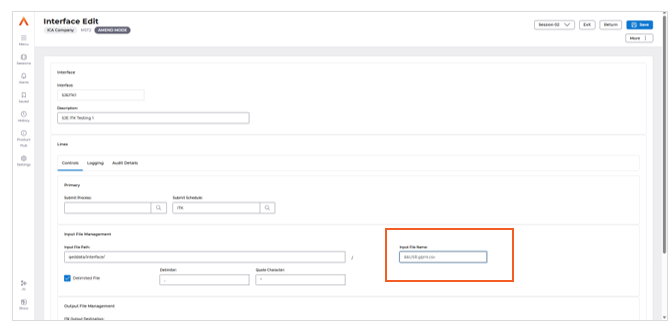
This ITK will be expecting a file in the files management area to have a name of (for example):
SSO00022.gljrnl.csv
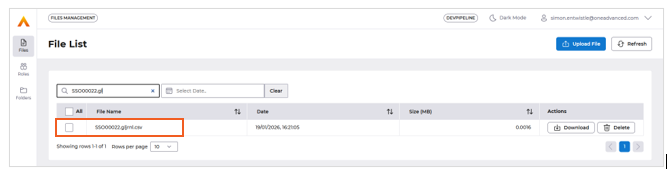
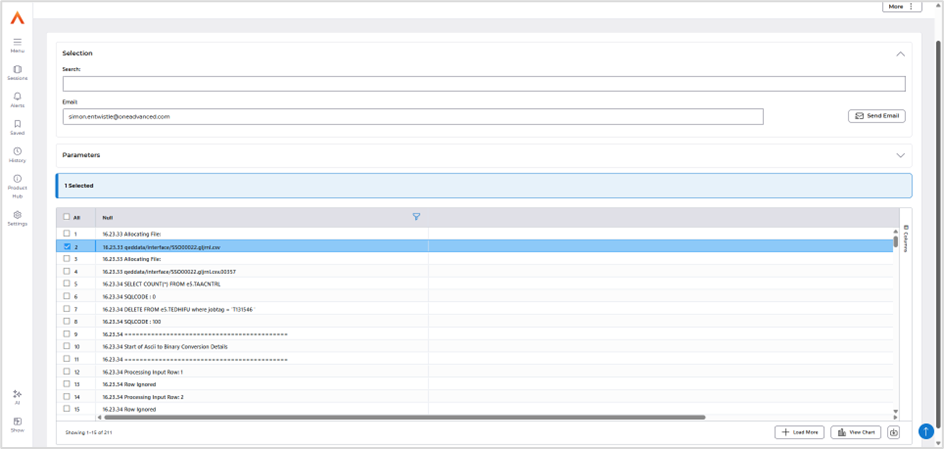
When the ITK is submitted, it will be processed using this named file and triggering the take on process after it’s completed. A backup file is created as usual in the files management directory of the same name with a generated sequence number.
Menu amendments:
AR Customer Controls (accessed from Systems Admin – Module Controls – Accounts Receivable Controls)
Ledger Code added
Job Billing Processing - added
Proposals Job
Removed
Job – List
Standard Job – List
Job Billing Enquiries Removed
JB Proposal – List
GL Data Entry Funds Check Failure Resubmission
Added to FA Reports menu Depreciation Forecast Report
