Contents
Create a new document code
 Updated
by Caroline Buckland
Updated
by Caroline Buckland
Sales Invoicing Document Type Edit
Document types help to organise your company's documents into transaction categories. For example, you can create document types to streamline the creation of invoices and credit notes for contracts, miscellaneous accounts and interdepartmental documents.
Follow the steps below to create a new document type.
System Admin>Module Controls>Accounts Receivable Controls>AR Data Entry Controls>Document Types.
Use the Insert action to create a new code.
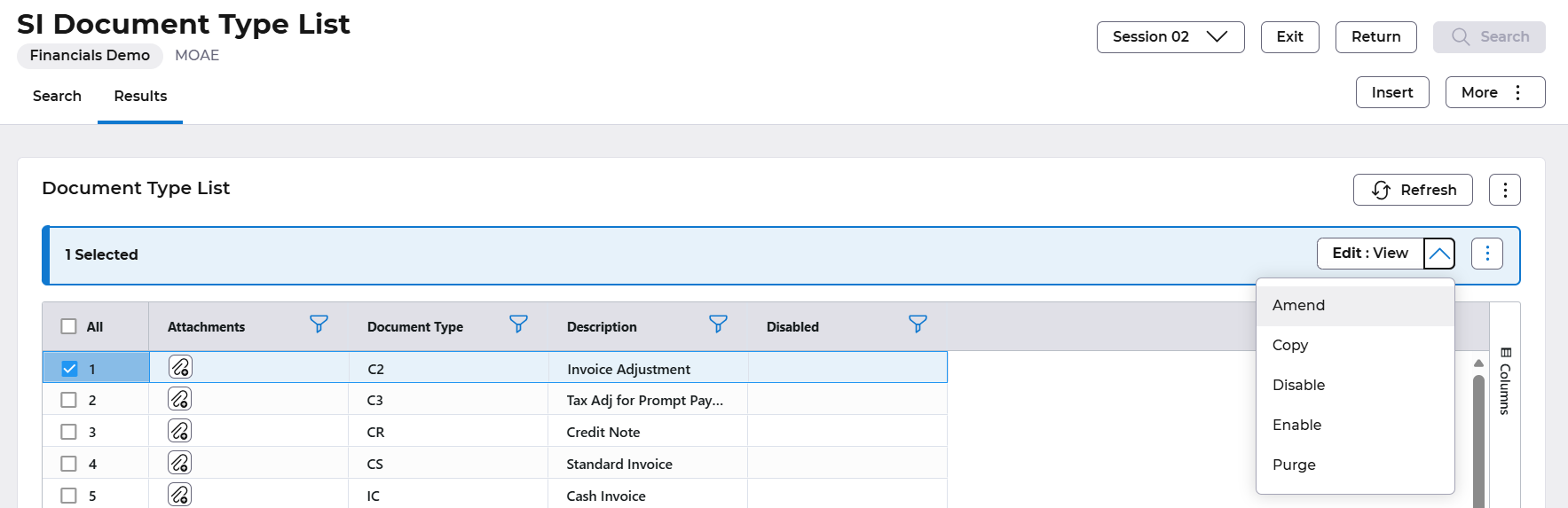
To amend a code select the Search button and locate the code you wish to amend use the Edit>Amend action.
The following fields are available.
Document Format - example below.
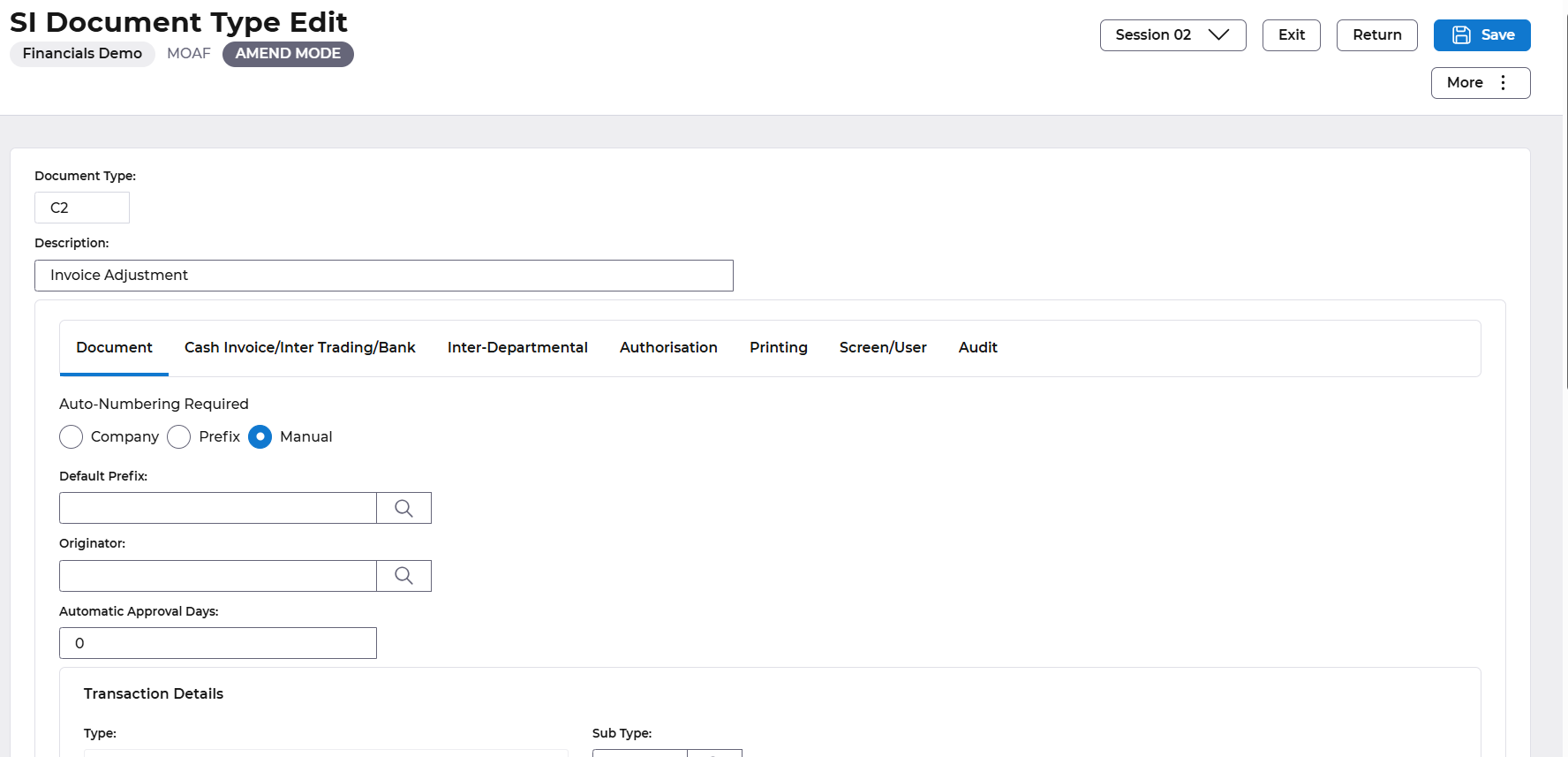
Field | Description | Mandatory |
Document Type | Enter a unique two-character Document Type code. | Y |
Description | Enter a Description of the document type, up to 40 characters. | Y |
Auto-Numbering | Select one of the following options in Auto-Numbering Required to indicate how the system numbers document types:
|
Default Prefix | Enter a Document Number Default Prefix (up to eight characters) which is not used on any other Document Type. This Prefix is used together with the Next Document Number to generate and assign unique numbers to new documents of this type. If the Company Numbering indicator is 'Y' in Company Controls (MOAB)then you cannot enter anything in this field. |
Originator | Displays the name of the person who originated this document - OPTIONAL |
Automatic Approval | Enter the number of days (0 to 999) before which approval will be automatic. If left blank, '0' will be used - OPTIONAL |
Transaction Type | Select one of the following options as the Transaction Type:
|
Subtype | Enter a two-digit Subtype code, which together with the Transaction Type comprise a complete transaction legend. You must enter this field for non-interdepartmental document types. |
Document Complete | If flag is set - The Document is created complete .If left blank - The Document is created incomplete - OPTIONAL |
Auto Complete Document | When this flag is set, will identify that documents created with this document type are eligible for automatic completion. A scheduled process can be ran to pick up all incomplete documents with this type and automatically set move the status of the document on (i.e. to eitheR complete or awaiting print) depending upon other controls on the document type - OPTIONAL |
Minimum Document Value | Enter a minimum value applicable to the document type - OPTIONAL |
No Default Tax Code | If set, a Tax Code will not be defaulted onto the transaction line if the user has not entered one. If not set, the Tax Code will be defaulted as per current functionality - OPTIONAL |
Recalculate Tax Value | If set, the Tax Value will be recalculated if the Tax Code has been changed regardless of whether a Tax Value is present - OPTIONAL |
Default AR System Code | Specify a valid AR System Code to be used as the default AR System Code during SI Document Entry. If a default is not specified here, AR System Code will default to 'xx' during document entry - OPTIONAL |
Cash Invoice/Inter Trading / Bank Format - all fields are optional
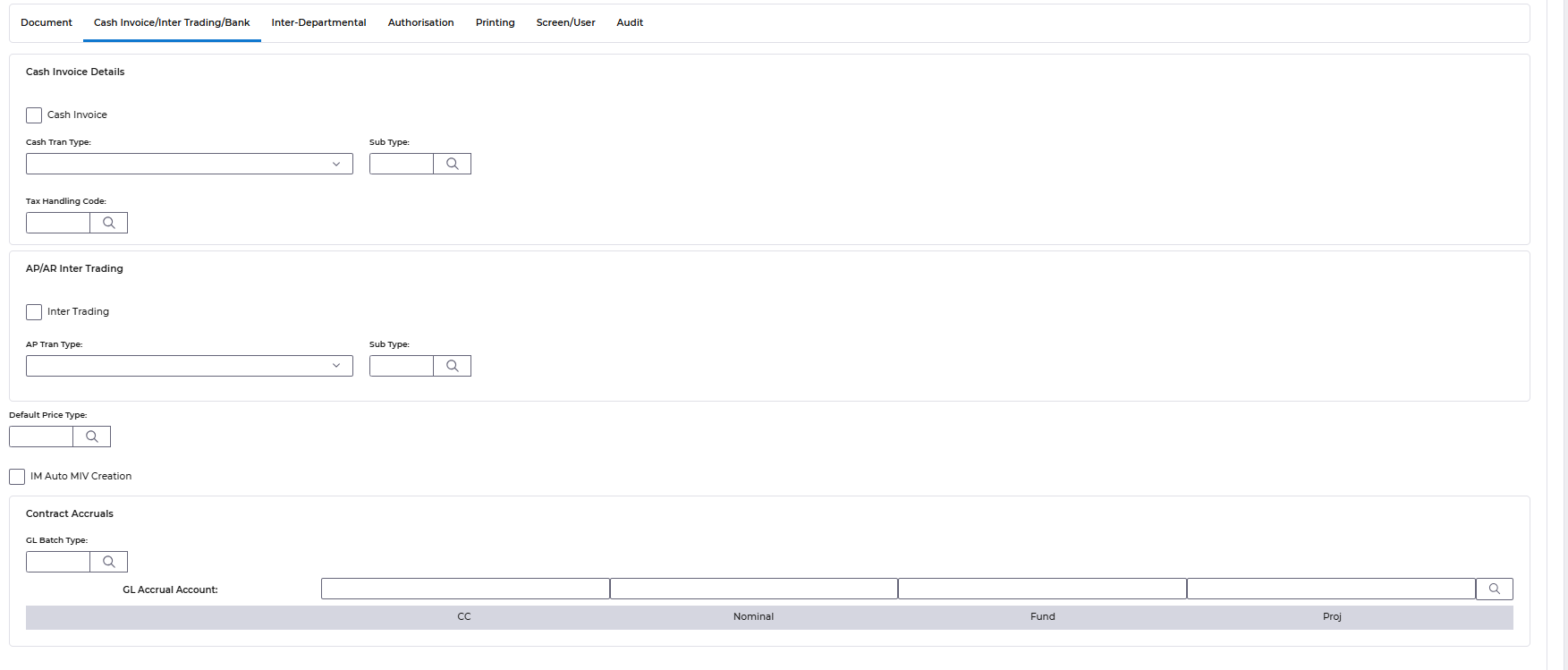
Cash Invoice | If flag set - This is a Cash Invoice document. Flag not set - This is not a Cash Invoice document. If you leave this field blank then flag not set will be the default. You cannot set the flag if the Inter Department field is set. Note If the Cash Invoice field is set and the Default Quick Print field or the Default Batch Print field is not set, then a warning message will be displayed. |
Cash Tran Type | Select Cash from the drop down menu |
Sub Type | Enter a two digit Sub Type code which together with the Cash Type entered makes a Transaction Legend. The Transaction Legend Name will then be displayed. You must enter this code when the Cash Invoice field is set to 'Y'; you may not enter it otherwise. |
Tax Handling Code | Enter a two character code which will identify the tax handling characteristics associated with this Document Type. This field may be entered when the Cash Invoice field is set, and may not be entered otherwise .Must be a valid entry as defined on screen MRAF - Tax Handling List and can only be of a tax recoverable type. |
Inter Trading | Flag this field if this code is to be used as inter trading to Accounts Payable |
AP Transaction Type | If you are using Internal Trading, then you must provide a Transaction Type to be used when creating an Accounts Payable transaction for this document type. |
Sub Type | If you are using Internal Trading, then you must provide a Transaction Sub Type to be used when creating an Accounts Payable transaction for this document type. |
Default Price Type | Enter a pre defined price type that is used to hold prices for this document code when contracts are used |
GL Batch Type | Identifies the batch type to use for accrual postings from SI contract item |
GL Account | Enter an existing General Ledger Account code to be used for Accruals Postings from SI contract Item. |
Inter - Departmental - all fields are optional
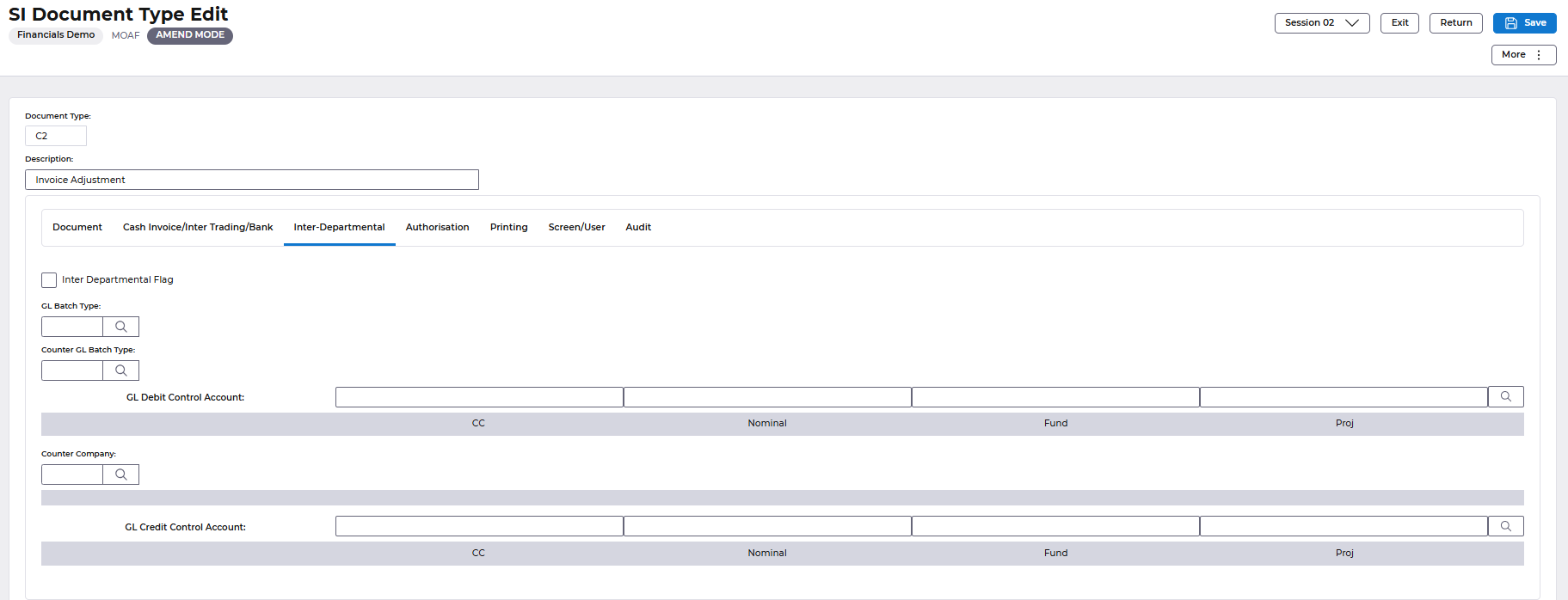
Inter Departmental Flag | Enter the Inter Department indicator. If flag is set - This Document Type is to be used for Inter-Department trading. If flag not set - This Document Type is not to be used for Inter-Department trading. If you leave this field blank the flag will not be set. You cannot set this field if OLAS Controls indicate that there i s no General Ledger in use, or if the Cash Invoice field is set. |
GL Batch Type | Counter GL Batch Type*Enter a four character Counter GL Batch Type. You may only enter thisif the Inter Department flag is set to 'Y'. |
Counter GL Batch Type | Enter a four character General Ledger Batch Type code. You may only enter this if the Inter Department field is set to 'Y'. If you leave this field blank then the Sales Ledger Company Controls Invoice GL Batch Type code will be used. |
GL Debit Control Account | Enter an existing General Ledger Debit Control Account code. You canonly enter this field if the Inter Department field is set to 'Y'.This account must be a valid GL Account for the relevant GL company |
Counter Company | Enter a two character Counter Company Code. You may only enter this if Intra Company Accounting is not in use and the Inter Department field is set to 'Y', as the General Ledger Counter Company is the Inter Company purchasing company. |
Authorisation format - all fields are optional
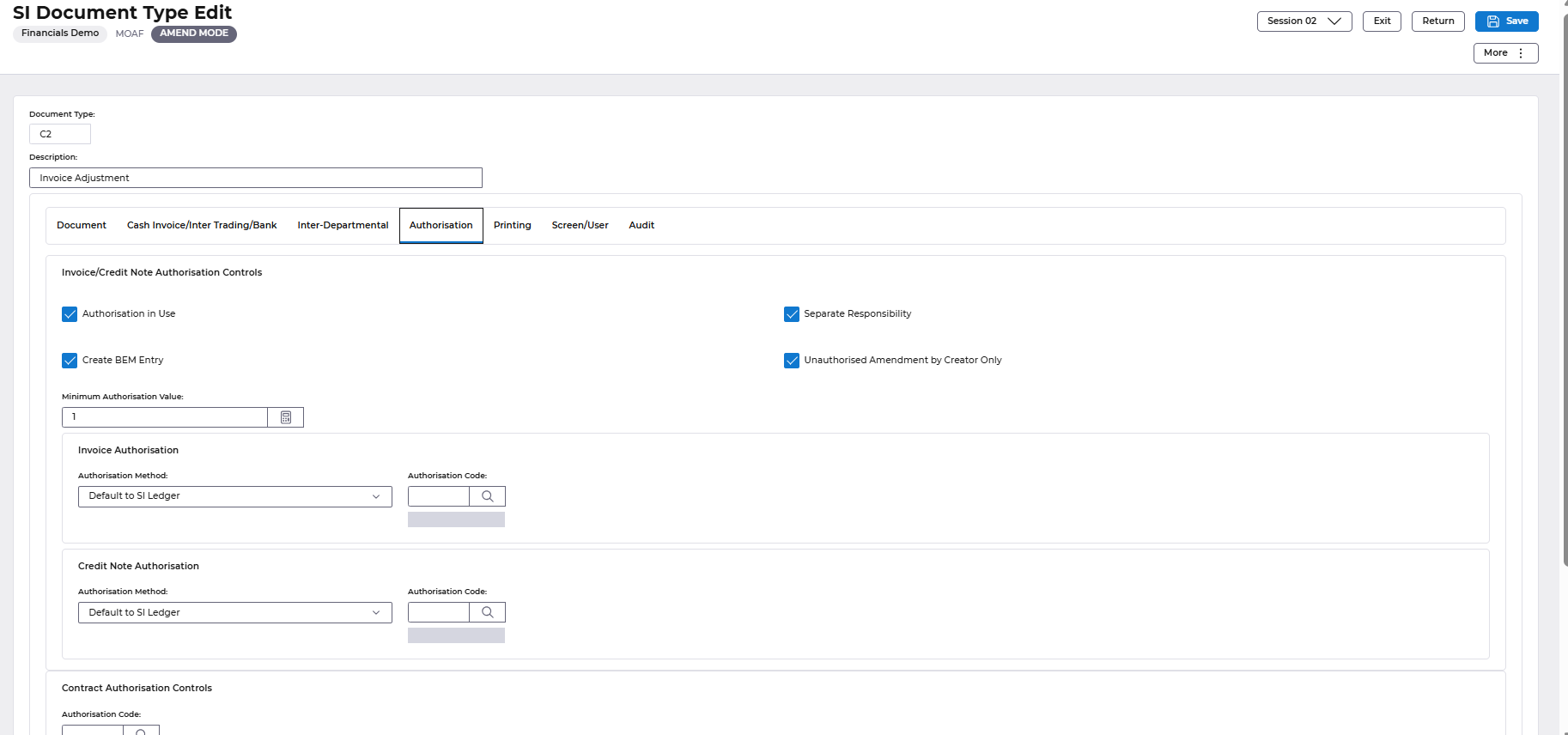
Authorisation in use | Enter the Authorisation Required indicator .Flag set - Authorisation is required for the production of this document type. The authorisation type (Document Header, Line or Both) will be that defined within the Sales Invoicing Ledger Controls. Flag not set - No authorisation is required for the production of this document, regardless of the entry in Sales Invoicing Ledger Controls. If you leave this field blank, no authorisation will be required for document production. |
Create BEM Flag | Set flag to indicate that you want Business Event Manager to create a diary entry for the required authorisers. |
Separate Responsibility | Set flag to indicate that the same user who last updated the document cannot also authorise or release this document. |
Unauthorised Amendment by Creator Only | Set this flag if you wish to limit the ability to amend unauthorised documents to the creator of the document. Note that the creator of the document is deemed to be the last user to have updated the document before it went for authorisation. The flag cannot be set when authorisation is not in use. |
Minimum Authorisation Value | Minimum Authorisation Value Optional, will default to Zero (No Minimum Authorisation Value) If greater than zero, only documents with a base currency gross value greater the an the specified value will require authorisation. |
Authorisation Method | Enter a setting that will determine the Authorisation applied for Invoice and Inter Departmental Documents. This setting will override the setting on SI Ledger. If no entry is made, a default setting of 0-Default Ledger will be applied and the SI Ledger setting will be used. Valid Entries are 0 - Default to SI Ledger 1 - Header Level only 2 - Line Level only 3 - Header or Line Level 4 - Header and Line Level |
Authorisation Code | Enter a valid Authorisation Code. This is required if the Authorisation Level has been entered. |
Contract Authorisation in Use | When set, this flag indicates that authorisation is required when a contract is created, amended, disabled or enabled. When contract authorisation is in use, a contract authorisation code must be entered and, optionally, Responsibility Separation and/or Diary Authorisation may be specified. |
Contract Responsibility Separation | Contract Authorisation Responsibility Separation When set, this flag indicates that the user who last updated a contract cannot authorise it. This field cannot be entered if contract authorisation is not in use. |
Contract Diary Authorisation | When set, this flag indicates that BEM messages are to be sent to the authoriser(s) of a contract when authorisation is required. This field cannot be entered if contract authorisation is not in use. |
Contract Authorisation on Disable/Enable | When set, this flag indicates that authorisation is required when a contract is disabled or enabled. When this flag is set, Disable and Enable will work as follows: If Edit/Disable action is requested, the contract will be set to "Unauth Disabling" status and will then require authorisation to set the disabled flag If Edit/Enable action is requested, the contract will be set to "Unauth Enabling" status and will then require authorisation to reset the disabled flag. This field cannot be entered if contract authorisation is not in use. |
Contract Review Indicator | Identifies if an entry of contract review date/BEM is required on a contract .When set to 'Optional' or 'Mandatory', contracts that have a Normal Document Type with this indicator set will allow a review date and BEM role to be entered so at the appropriate review date, a BEM reminder message will be generated to the users defined on the BEM role to inform them that the contract requires reviewing. |
Printing Format
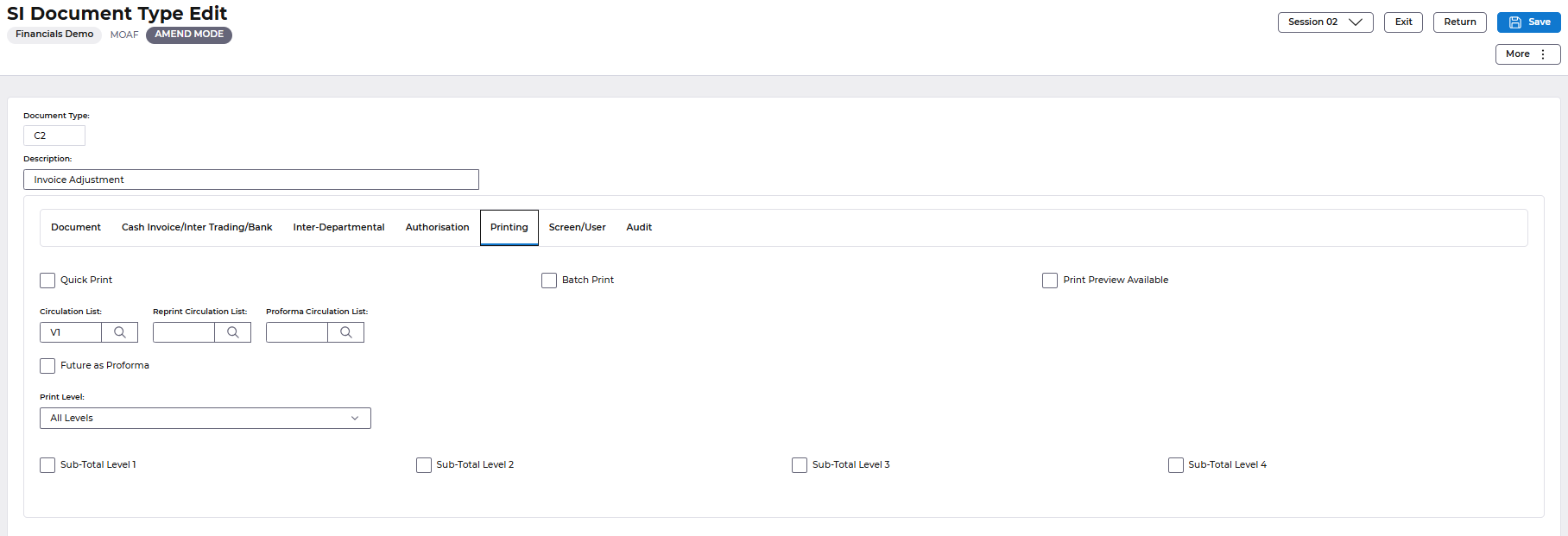
Quick Print | If flag set - Print this document type on demand. If not set - Printing on demand is not required. If you leave this field blank the default will be flag not set. The Quick Print and Batch Print fields work independently. The Quick Print indicator allows a document to go directly to the status 'Awaiting Print'; it has no bearing on how the document will be physically printed. If the Batch Print indicator is set then th document will always be printed in batch. |
Batch Print | If flag set - Documents will be printed in batches. If not set - Documents will be printed on demand. If you leave this field blank the flag will not be set and documents will be printed on demand.The Quick Print and Batch Print fields work independently. In the case of both fields being set, the system will Quick Print if the document producer is an authoriser; if not then overnight Batch Printing will be carried out. |
Print Preview | If flag set - Documents will go into the 'Batch Review' status after insertion. Documents for this status can then be reviewed on the MODA list and a 'batch' total calculated to aid in the reconciliation of documents entered .If not set - Documents will not stop at the 'Batch Review' status after insertion, they will continue to either incomplete, unauthorised or awaiting print. will not be available for print preview. The Jasper Based Print Preview is dependant upon any Customisation of the QED Document Print Mapping (by default 01/SI_DOC) also being applied to the Print Preview Jasper Report. NOTE; If this is not done then they will get out of step. |
Circulation Code | Enter a two character code which will be used to identify the default Circulation List for this Document Type. This Circulation List code will used by new documents of this type unless a different one is specified at the time the new document is created. A circulation list defines those people who will receive a copy of the document after it has been printed. |
Reprint Circulation Code | Enter an existing Circulation List Code for reprinting documents. This value will default at data entry time. |
Proforma Circulation Code | Leave blank. |
All other fields should be ignored |
